Mail configuration
Overview
The product supports the customization of all mail messages sent as part of the normal operation. The subject and body of the mail message can be changed according to ones needs.
Any mail message can be configured:
- Globally, for all accounts.
- Individually by account.
The individual account configuration takes precedence over the global, account independent configuration. If none is given, the application reverts to the default messages.
Changes can be done on a message basis, a mix of individual, global and default settings can be used.
There is no support for multiple languages by account. If a different account language is to be used, the mail messages can be overridden with account specific messages written in the preferred language.
Configuration entries
Mail messages can be set via the configuration system or via the configuration REST API. All mail configuration entries will be located in the Mail section of the configuration user interface. If configured via the REST API, the settings will start with ‘mail.message.’.
A mail message will have two configuration entries:
- subject: the mail subject
- body: the mail content
Each is a configuration entry and can be changed independently.
The configuration description (also available via the REST API) describes the scope of the message.
To change a mail message, you can store the new text as the configuration content. The system will start using it after the configuration has been stored (and possibly distributed if more than one application instance is used). No system restart is required.
Placeholders
A list of placeholders is available that can be used in mail texts. Placeholders will be expanded to the content they represent when the mail is created. For instance %%PACKAGENAME%% will be expanded to the signing package name that is referenced by the mail generated.
Placeholders are only valid in context. For instance %%PACKAGENAME%% is only valid in mails referring to signing package processing, like informing the signer of a signing package, or informing the owner of a declined package. It will not be valid in a mail informing the user of a changed password, since no signing package is used in that context. Invalid placeholders (out of context, misspelled) will be replaced by a question mark.
For security reasons, placeholders are HTML escaped when expanded.
A list of placeholders is given below:
| Placeholder | Description |
|---|---|
| Account personalization | |
| %%LOGINLOGOURL%% | The URL of the login logo. |
| %%HEADERLOGOURL%% | The URL of the header logo. |
| %%HEADERBACKGROUND%% | The header background color. |
| %%HEADERFOREGROUND%% | The header foreground color. |
| %%FOOTERBACKGROUND%% | The footer background color. |
| %%FOOTERFOREGROUND%% | The footer foreground color. |
| %%HEADINGSTITLEFOREGROUND%% | The headings title foreground color. |
| %%FOOTERLINKURL%% | The footer link URL. |
| %%FOOTERLINKTEXT%% | The footer link text. |
| Account | |
| %%ACCOUNTNAME%% | The name of the account. |
| %%ACCOUNTID%% | The account id (OID) used at login. |
| %%ACCOUNTCOMPANY%% | The company information. |
| %%ACCOUNTCONTACT%% | The contact information for the account. |
| Signing package | |
| %%PACKAGEOWNERNAME%% | The name of the signing package owner (creator or last editor). |
| %%PACKAGENAME%% | The signing package name. |
| %%PACKAGEDESCRIPTION%% | The signing package description. |
| %%PACKAGEEXPIRATIONDATEYEAR%% | The (4 digit) year part of the signing package expiration date. |
| %%PACKAGEEXPIRATIONDATEMONTH%% | The (2 digit) month part of the signing package expiration date. |
| %%PACKAGEEXPIRATIONDATEDAY%% | The (2 digit) day part of the signing package expiration date. |
| %%PACKAGEMAILSUBJECT%% | The email subject that can be specified on a signing package level. |
| %%PACKAGEMAILBODYTEXT%% | The email content (body) that can be specified on a signing package level. |
| Signer | |
| %%SIGNERNAME%% | The name of the signer. |
| %%SIGNEREMAILADDRESS%% | The email address of the signer |
| %%SIGNERDECLINEREASON%% | The predefined reason the signer selected for declining the signing package. |
| %%SIGNERDECLINECOMMENT%% | The comment entered by the signer when declining the signing package. |
| %%SIGNERACCESSCODEDELIVERYCHANNELINFO%% | Information on the access code delivery channel. (The method used to send the access code, like SMS.) |
| User | |
| %%USERNAME%% | The name of the user. |
| %%USERLASTUPDATETIME%% | The time when the user information has last been updated. |
| Team | |
| %%TEAMNAME%% | The team name for a team invitation. |
| Link and message | |
| %%LINK%% | The link to be sent (context dependent). |
| %%LINKEXPIRY%% | The link expiry, if applicable. |
| %%MESSAGE%% |
The custom message to be sent. (Sometimes used for custom information, like the person inviting a new user in an invitation mail.) |
Additional configuration
Some placeholders are used to expand system settings, or preset choices to text (like decline reasons). If the language of the mail messages is changed for an account, there must also be a way to change the language of those pre-defined placeholders.
This can be done the same way the mail messages themselves are configured. Following entries are available for this purpose:
- Decline reasons (mail.message.reason.*)
- Access code delivery (mail.message.accesscode.*)
If you change the language of the mail messages, you should also translate all the entries for the categories above to the language of your choice. You should use the same scope as the mail language change (global, or for a specific account). There is no reason to change those if the mail language will be English.
Using HTML mails
HTML can be used in the mail body. The text you define as a mail body will be placed inside the <body> … </body> HTML tags (those should not be included in the configuration item). See the examples below for an HTML encoding.
Examples
Changing the team invitation subject
Users added to SignDoc teams receive a mail defined by the settings mail.message.user.add.to.team.invited.subject and mail.message.user.add.to.team.invited.body. They will show in the configuration editor as ‘Team invitation email subject’ and ‘Team invitation email body’.
If you act as a server administrator, you will have to open the Administration Center. You can either change the setting for all accounts, or, select a specific account first and only change the settings for that account. Any account change takes precedence over the global change.
If you act as an account administrator, you can only change the settings for your own account. You can log in to the SignDoc Manage Client and find the configuration editor in the administration section.
Regardless of the method you use, the remaining explanation will be the same.
Open the configuration editor and locate the subject entry in the Mail section. The entry will show the current value, or a placeholder with the default values if they have not been changed yet. You can use those as a starting point to design your new content.
We want to add the team name to the subject. Change the subject to: ‘You have been added to the SignDoc team %%TEAMNAME%%’.
You will notice that we have used the ‘%%TEAMNAME%%’ placeholder in the text. When the mail will be generated, it will be replaced with the actual team name of the invitation.
Save the changes by clicking Save in the configuration editor.
You can test the new settings by adding a user to a team and looking at the mail received. Use a user that has an email address you can receive.
Changing the signer notification mail using HTML content
In this example we will customize the mail message sent to invite signers to sign a package. The settings can be found under ‘Signer notification email subject’ and ‘Signer notification email body’ in the configuration editor, or under ‘mail.message.signing.subject’ and ‘mail.message.signing.body’ in the REST API.
Note that there are different mail configurations to notify a signer and a reviewer.
The signer notification is a more special case, since the package creator can add his own mail text as part of the signing package parameters. The signer notification mail body acts as a frame for the package notification text.
The look we are trying to achieve is this:
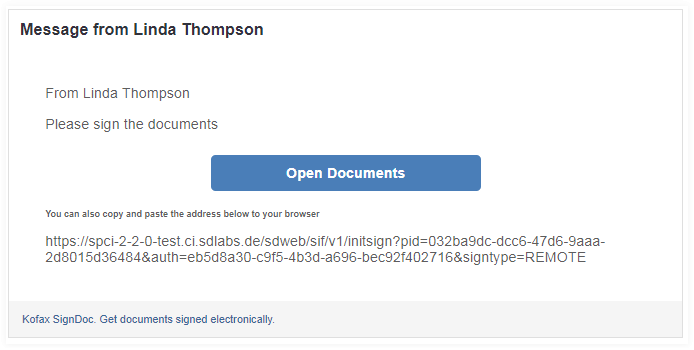
For the sake of readability we will keep the formatting to a minimum. The image below shows the different areas in the layout:
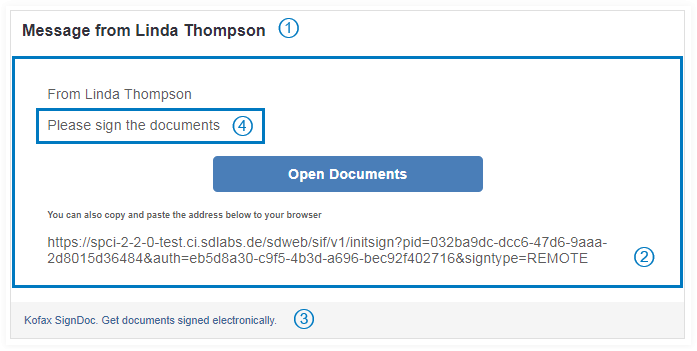
1 Table row: header
2 Table row: content
3 Table row: footer
4 Package message by package creator
We will create an HTML table with three rows: header, content and footer.
The header and footer row will use the customized colors defined in the account settings.
The content will include the signing package owner provided text and the link to the signing session. The link is used twice, first formatted as a button, then as text, in case the user prefers to view it as such.
The HTML layout for the image above looks like this:
<table style="font-family:arial;font-size:12px;background-color:#FFFFFF;color:#000000;width:100%" cellpadding="5" cellspacing="5">
    <tr style="background-color:#%%HEADERBACKGROUND%%;color:#%%HEADERFOREGROUND%%;">
        <td style="width:100%;font-size:18px;font-weight:bold;">e-signing request</td>
    </tr>
    <tr>
        <td>
            <p>Dear %%SIGNERNAME%%,</p>
            <p>%%PACKAGEMAILBODYTEXT%%</p>
            <p>%%SIGNERACCESSCODEDELIVERYCHANNELINFO%%</p>
            <p><center>
                <a href="%%LINK%%" style="background-color:#00BB22; color:#ffffff; font-size:16px; font-weight:bold; font-family:Helvetica,Arial,sans-serif; text-decoration:none; line-height:40px; padding: 6px 6px 6px 6px; display:inline-block">Open Documents</a>
            </center></p>
            <p>You can also copy and paste the address below to your browser.</p>
            <p>%%LINK%%</p>
            <p></p>
        </td>
    </tr>
    <tr>
        <td style="background-color:#%%FOOTERBACKGROUND%%; color:#%%FOOTERFOREGROUND%%; width:100%; font-size:12px;" cellpadding="12" cellspacing="3">
            <p>Kofax SignDoc. Get documents signed electronically.</p>
        </td>
    </tr>
</table>
Note the use of the placeholders:
- %%HEADERBACKGROUND%%, %%HEADERFOREGROUND%%, %%FOOTERBACKGROUND%%, %%FOOTERFOREGROUND%% expand to the colors defined in the account customization.
- %%SIGNERNAME%% expands to the signer name.
- %%PACKAGEMAILBODYTEXT%% expands to the package mail body defined by the signing package owner.
- %%SIGNERACCESSCODEDELIVERYCHANNELINFO%% expands to the delivery channel description used to send the access code, if given.
- %%LINK%% expands to the link leading to the signing session for this package.
To save space and minimize delays, one can remove spaces, line breaks and other formatting elements and paste the result into the ‘Signer notification email body’ setting in the configuration editor:
<table style="font-family:arial;font-size:12px;background-color:#FFFFFF;color:#000000;width:100%" cellpadding="5" cellspacing="5"><tr style="background-color:#%%HEADERBACKGROUND%%;color:#%%HEADERFOREGROUND%%;"><td style="width:100%;font-size:18px;font-weight:bold;">e-signing request</td></tr><tr><td><p>Dear %%SIGNERNAME%%,</p><p>%%PACKAGEMAILBODYTEXT%%</p><p>%%SIGNERACCESSCODEDELIVERYCHANNELINFO%%</p><p><center><a href="%%LINK%%" style="background-color:#00BB22;color:#ffffff;font-size:16px; font-weight:bold;font-family:Helvetica,Arial,sans-serif;text-decoration:none;line-height:40px;padding: 6px 6px 6px 6px; display:inline-block">Open Documents</a></center></p><p>You can also copy and paste the address below to your browser.</p><p>%%LINK%%</p><p></p></td></tr><tr><td style="background-color:#%%FOOTERBACKGROUND%%;color:#%%FOOTERFOREGROUND%%;width:100%;font-size:12px;" cellpadding="12" cellspacing="3"><p>Kofax SignDoc. Get documents signed electronically.</p></td></tr></table>
After you save the changed setting, you can test the new layout by creating a signing package with a signer using your email address and view the mail received.