
Configure activities for the case definition
Configure the activities for the Incident case.
Set Case Ref
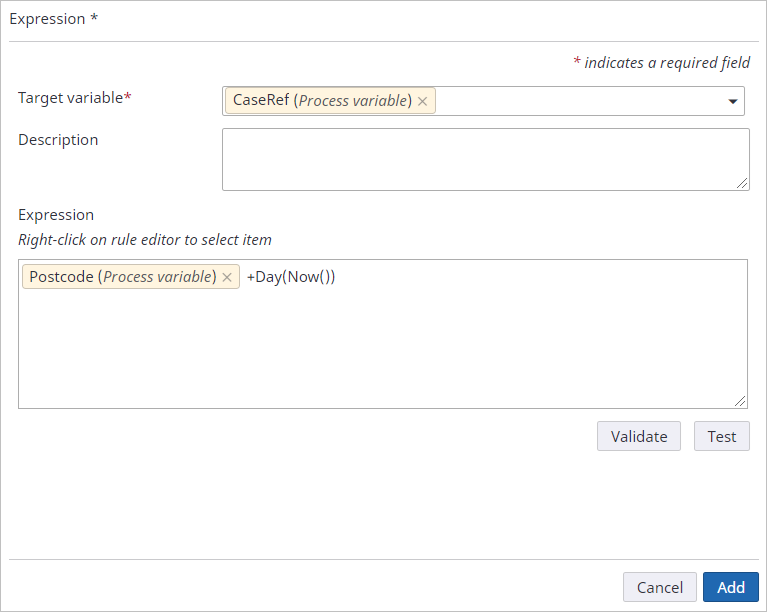
This activity uses an expression to create a case reference from the data passed to the case on start-up.
While kept simple within this tutorial, this activity can be as complex as interacting with third-party systems if required.
In this case, you add the current day to the postcode.
The case reference must be unique; otherwise, an error is displayed as the reference is used against the case processing.
- On the Type list, select Expression.
- Under Configuration, click to add a new expression.
- On the Target variable list, select the CaseRef process variable.
-
In the
Expression box, create
an expression as shown below.
- Right-click and select the Postcode process variable.
- Enter +.
- Right-click and select Functions.
- Click Date and select Day(date).
- Place the cursor inside the ( ) next to Day, and then right-click and select Functions.
-
Click
Date and select
Now(). The case
reference is set as the postcode plus the day of the week.
- Click Add.
-
Set the initial state of the case.
- Click the Advanced tab on the activity properties.
- On the State list, select the New process state.
-
Set the activity to fire the metric related to the cases being
opened.
- Click the After processing tab on the activity properties.
- Click for Business events.
- On the Event list, select Cases Raised.
-
Map the
Customer Username process variable to the
Customer User Name field.
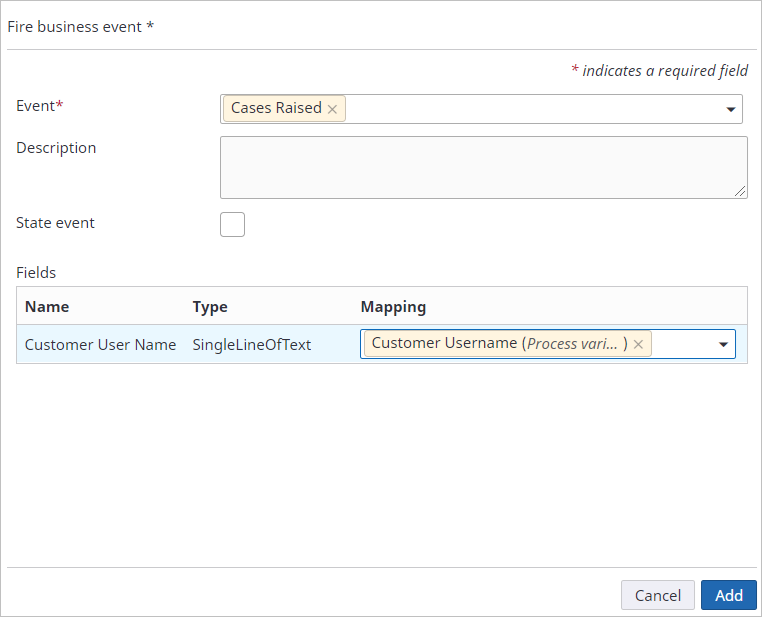
- Click Add. This event fires the case-raised metric that you will be monitoring.
Update Case Ref
Use this activity to set the case reference of the running case to the value created in the Set Case Ref node. It uses a TotalAgility .Net SDK to update the case with the newly created case reference.
- On the Type list, select .Net.
- Under Configuration, click Configure.
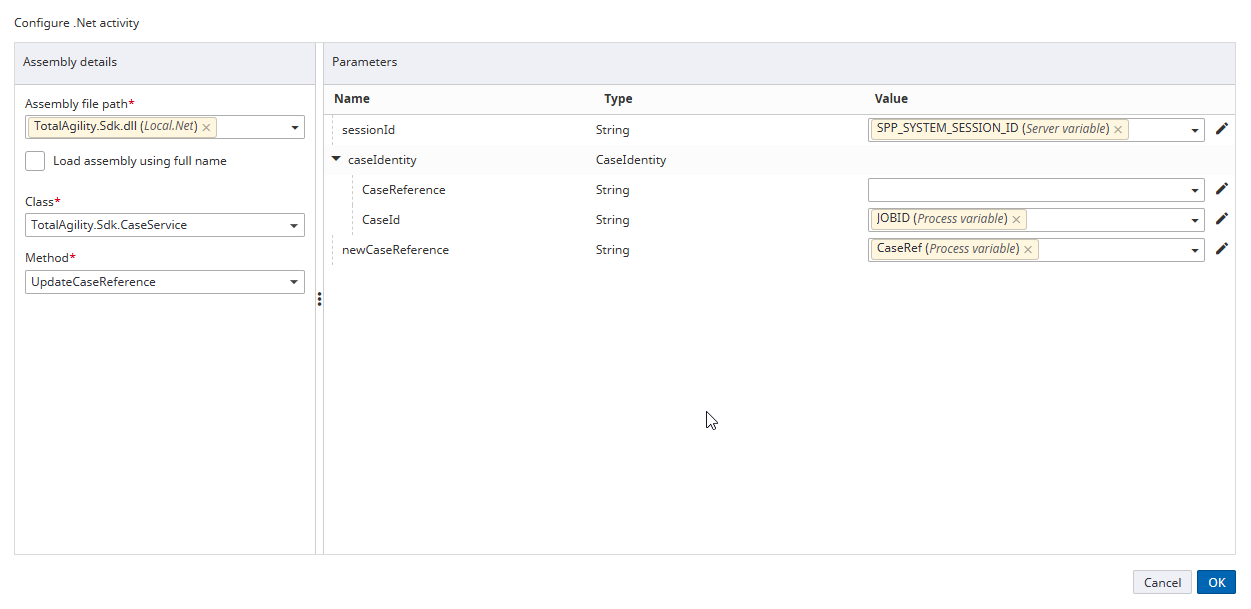
- On the Assembly file path list, select TotalAgility.Sdk.Dll (available in local.Net > System category).
- On the Class list, select TotalAgility.Sdk.CaseService and on the Method list, select UpdateCaseReference.
-
Map the parameters as shown below.
Parameter
Variable
Description
sessionid
SPP_SYSTEM_SESSION_ID server variable
This variable is available under the System category and contains the system session ID that permits SDK calls without logging in.
caseIdentity>CaseId
JOBID process variable
This variable uniquely identifies the running job.
newCaseReference
CaseRef process variable
This variable updates the running job to the case reference passed.
-
Click
OK.
Next, configure the Update Role and Triage activities.
Both activities originate from the Update Case Ref activity; they become pending in parallel, and you can execute them in parallel.
Update Role
Use the update role activity to add the occupant's username (entered on case creation) to the floating role created as part of the case; the occupant can participate in the process and take activities when assigned.
- On the Type list, select .Net.
- Under Configuration, click Configure.
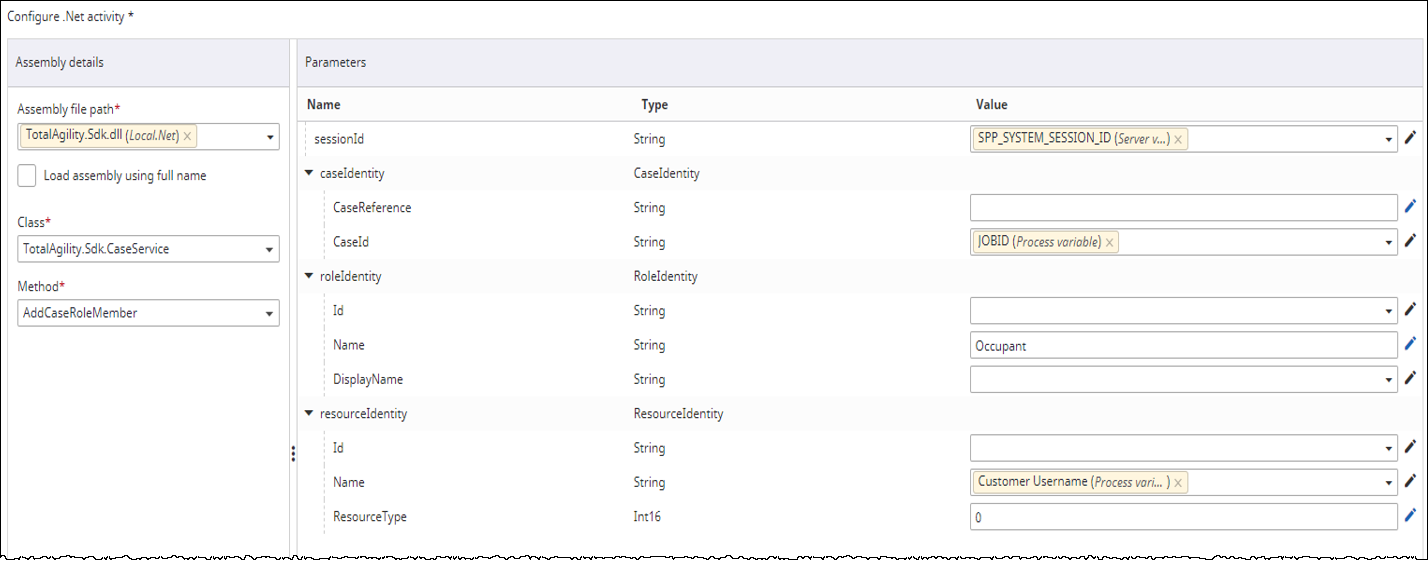
- On the Assembly file path list, select TotalAgility.Sdk.Dll (available in Local.Net > System category).
- On the Class list, select TotalAgility.Sdk.CaseService and on the Method list, select AddCaseRoleMember.
-
Map the parameters as shown below.
Parameter
Variable
Description
sessionid
SPP_SYSTEM_SESSION_ID server variable
This variable contains the system session ID that permits SDK calls without logging in.
caseIdentity>CaseId
JobID process variable
This variable uniquely identifies the running job.
roleIdentity>Name
Enter the static value as Occupant
Name of the floating role created earlier.
resourceIdentity>Name
Customer Username process variable
The resourceIdentifity parameter uses the name and maps the Customer Username created earlier with a type of 0 (resource).
resourceIdentity>ResourceType
0
Resource type.
-
Click
OK.
For more information on .Net APIs referenced in this tutorial, see the TotalAgility SDK documentation.
Triage
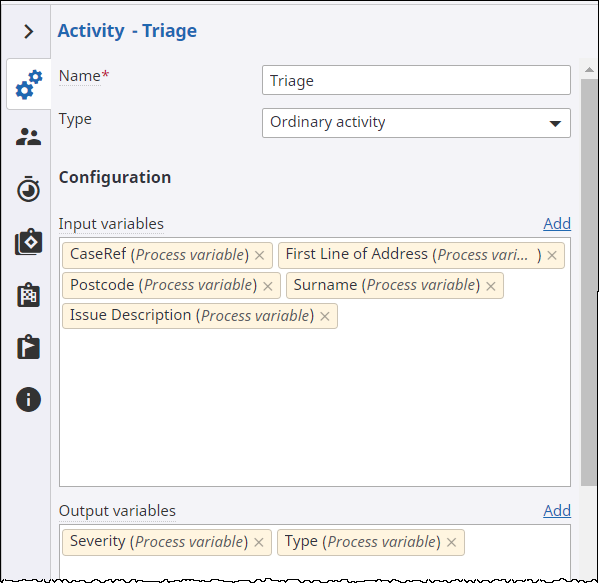
The Triage activity is an ordinary activity (manual task) where the Customer Service Team reviews the incident notes and contacts the occupant if needed. The team then decides how to proceed, by either raising issues that need resolution or setting the criticality of the case ensuring that everything is moving forward as designed.
- On the Type list, select Ordinary activity.
-
For
Input variables and
Output variables, click
Add and select the
following process variables in the given sequence.
Input variables Output variables -
CaseRef
-
First Line of Address
-
PostCode
-
Surname
-
Issue Description
-
Severity
-
Type
-
-
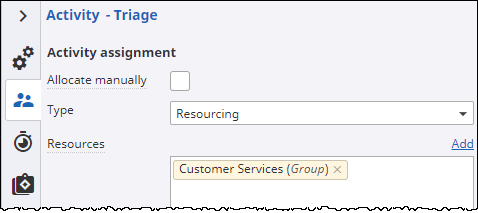
Assign the resource to the
Customer Services group created earlier (see
Create groups).
- Click the Resource assignment tab.
- On the Type list, select Resourcing.
-
Click
Add.
The Add resources dialog box appears.
- On the Groups tab, under the Incident Management category, select the Customer Services group.
-
Click
Done.
-
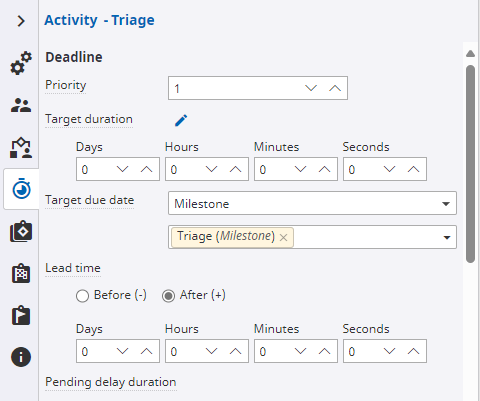
Use the
Triage milestone as the due date for this activity.
- Click the Time and cost tab.
-
On the
Target due date
list, select
Milestone, and then
select the
Triage milestone from the list.
-
To automatically set the
Triage milestone as being met when the
Triage task is completed, do the following:
- Click the After processing tab.
- On the Set milestone list, select the Triage milestone.
-
Associate the
Triage Case form with this activity so that you can start
the associated jobs from this activity.
The TriageCase form was imported as a part of the initial setup. See Import forms.
- Click the Configuration tab on the activity properties.
- Under User interface, on the Associated file path list, select Triage Case form.
Next, configure the Internal Review and Resolved activities. Both these activities originate from the Triage activity.
Internal Review
As some incidents may have multiple issues and take time to resolve, add an activity for internal review to monitor progress and ensure that everything is progressing as it should. If the case is resolved before taking this activity, then this activity is removed automatically.
-
Click the
Configuration tab on
the activity properties.
- On the Type list, select Ordinary activity.
-
For
Input variables,
click
Add and select the
following process variables in the given sequence.
-
CaseRef
-
Surname
-
First Line of Address
-
PostCode
-
Contact Number
-
Issue Description
-
Severity
-
Type
-
-
Assign the activity to the
Customer Services group.
- Click the Resource assignment tab.
- On the Type list, select Resourcing.
- For Resources, click Add.
- On the Group tab, under the Incident Management category, select the Customer Services group.
- Click Done.
- On the Advanced tab, set the State to Triaged.
Resolved
The Resolved activity only becomes active when all the jobs created in the Triage activity are completed. These jobs run independently but notify the case when they are complete. The case only allows the Resolve step to be assigned to a work queue when all jobs are complete.
-
Click the
Configuration tab on
the activity properties.
- Select Ordinary activity as the Type.
-
For
Input variables,
click
Add and select the
following process variables in the given sequence.
-
CaseRef
-
Contact Number
-
First Line of Address
-
Issue Description
-
Issue Raised
-
PostCode
-
Severity
-
Surname
-
Type
-
-
Assign the activity to the
Customer Services group.
- Click the Resource assignment tab.
- On the Type list, select Resourcing.
- For Resources, click Add.
- On the Group tab, under the Incident Management category, select the Customer Services group.
- Click Done.
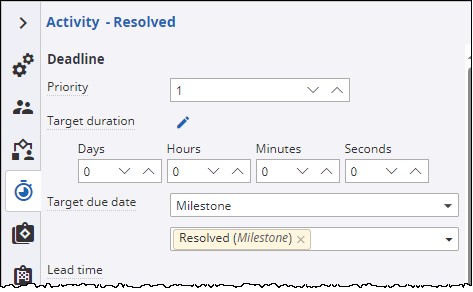
-
On the
Time and cost tab, for
Target due date, select
Milestone, and then
select the
Resolved milestone.
-
Set up the precondition:
A precondition allows the case to be synchronized with other processes or external systems that might be running. Using the process event created earlier (see Set up process events called IssuesAddressed), you indicate how many events are completed (regardless of where) before the activity becomes pending and appears on someone’s work queue.
- Click the Dependents tab to create a precondition where the IssuesAddressed process event is greater than or equal to the Issues Raised process variable (which will be incremented by each associated job created in the Triage task).
-
Right-click the rule editor, click
Process event, and
select
IssuesAddressed.
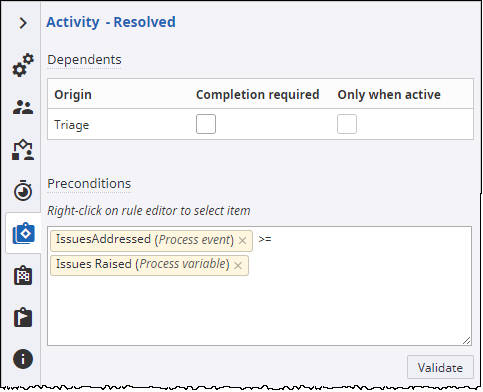
- Enter >=.
- Right-click the rule editor, click Process variable, and select Issues Raised.
Close
Assign the Close activity to the occupant who raised the case. This is to ensure that everything is done to their satisfaction. This activity highlights the use of external users and floating roles defined earlier. You had previously added the occupant username to the occupant floating role. Now you assign this activity to a role so that each instance of the case can be fulfilled by a different person.
-
Click the
Configuration tab on
the activity properties.
- Select Ordinary activity as the Type.
-
For
Input variables and
Output variables,
click
Add and select the
following process variables in the given sequence.
Input variables Output variables -
CaseRef
-
Contact Number
-
Customer Username
-
First Line of Address
-
Issue Description
-
PostCode
-
Surname
Satisfied -
-
Assign the activity to the floating role you defined earlier.
- Click the Resource assignment tab.
- On the Type list, select Resourcing.
- For Resources, click Add.
- On the Process role tab, under the Incident Management category, select the Occupant process role.
- Click Done.
- On the Time and cost tab, for Target due date, select Milestone, and then select the Close milestone.
- On the Advanced tab, set the State to Resolved.
- On the After processing tab, set the Set milestone to Close.
Satisfied
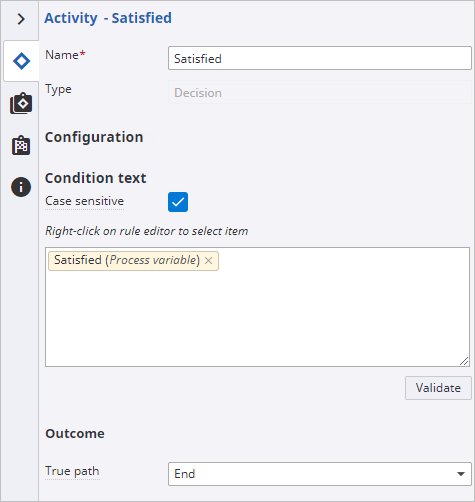
This decision indicates the flow of the case based on whether the occupant is satisfied with the resolution of the case. If the occupant is satisfied with the resolution of the case, then the case is completed. Otherwise, the case is followed up by the Incident Management team.
- Click the Configuration tab of the decision, right-click the rule editor, and select the Satisfied process variable.
-
Under
Outcome, on the
True path list, select
End.
Configure the second path from the decision, that is, the path the flow will follow if the occupant is not satisfied.
Follow up
The Follow up activity lets the Incident Management team review the case if the occupant is not satisfied with the resolution. This activity uses the fixed role defined within the case.
- Click the Configuration tab of the activity properties.
- On the Type list, select Ordinary activity.
-
For
Input variables, click
Add and select the
following process variables in the given sequence.
-
CaseRef
-
Contact Number
-
Customer Username
-
First Line of Address
-
Issue Description
-
PostCode
-
Satisfied
-
-
Assign the activity to the process role,
Incident Management Team.
- Click the Resource assignment tab.
- On the Type list, select Resourcing.
- For Resources, click Add.
- On the Process role tab, under the Incident Management category, select Incident Management Team process role.
- Click Done.