
Create a completion process
A completion process is used when a case is completed. You design a process, for example, to archive documents, remove data, ensure payments are processed, and manage related details.
This is an optional setting on the case definition.
For now, the process will only pass through a synchronous process. Later in the tutorial, it is used to show how the completion process can be linked to the case definition. View "Case completion" under the General tab of the Incident Case.
Create a completion process: Close Work Orders
-
On the
TotalAgility Advanced Studio
Home page, navigate to
and click
New.
The new process opens on a new browser tab. The Design tab of the process is displayed by default.
- In the Name box, enter Close Work Orders as the process name.
-
Add an activity.
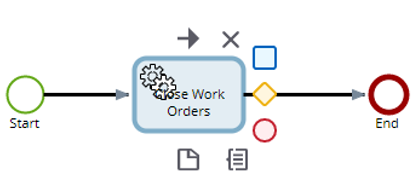
- In the Name box, enter Close Work Orders as the activity name.
- On the Type list, select Synchronization.
- Add an End node to the Synchronization node.
-
Set up
CaseRef and
JobID initialization variables within the process map.
-
On the modeling bar, click the
Variables tab, and then click
New.
The New variable dialog box appears.
- In the Name box, enter CaseRef as the name of the variable.
- Select the Initialization check box, on the Type list, select String, and click Add another.
- In the Name box, enter JobID as the name of the variable.
- Select the Initialization check box, on the Type list, select String, and click Add and close.
When the case definition closes, it passes the JobID and CaseRef parameters to the completion process. These values are used to interrogate the case for any of the applicable data.
-
On the modeling bar, click the
Variables tab, and then click
New.
-
Set the order of initialization.
-
Click
Initialization order on the
Variables tab.
The Initialization variables dialog box appears.
- Move the JobID above CaseRef using the arrow.
- Click OK.
-
Click
Initialization order on the
Variables tab.
- Release the map.