
Set up case milestones
Milestones are used to indicate key target dates within the process irrespective of which steps have been completed.
For the incident case, set three milestones:
-
Triage: When the case should be triaged.
-
Resolved: When the case should be reviewed.
-
Close: When the case should be closed.
Create the first milestone: Triage
-
On the process, click the
Milestones tab and click
New.
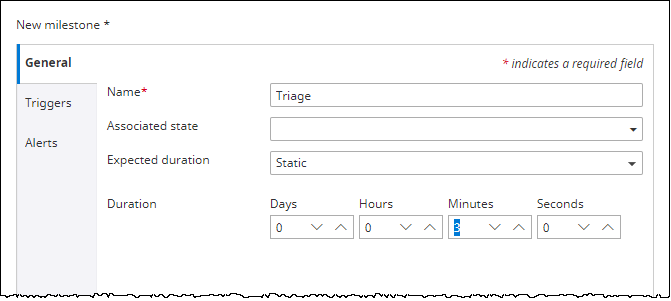
The New milestone dialog box appears.
- In the Name box, enter Triage.
-
To indicate that the Triage milestone should occur three minutes after the case is created, set
Duration to
3
Minutes.
- Click Add.
Create the second milestone: Resolved
Next, create the second milestone to indicate that all work on the case should take five minutes after case creation. However, if this does not happen, it starts a process one minute before you miss the key date to try to ensure that you complete it on time.
-
On the
Milestones page, click
New.
The New milestone dialog box appears.
- In the Name box, enter Resolved.
- To indicate that this milestone should occur after 5 minutes the case is created, set 5 Minutes as the Duration.
-
To start a process one minute before you miss the key date, do the following:
-
Click the
Triggers tab and click
.
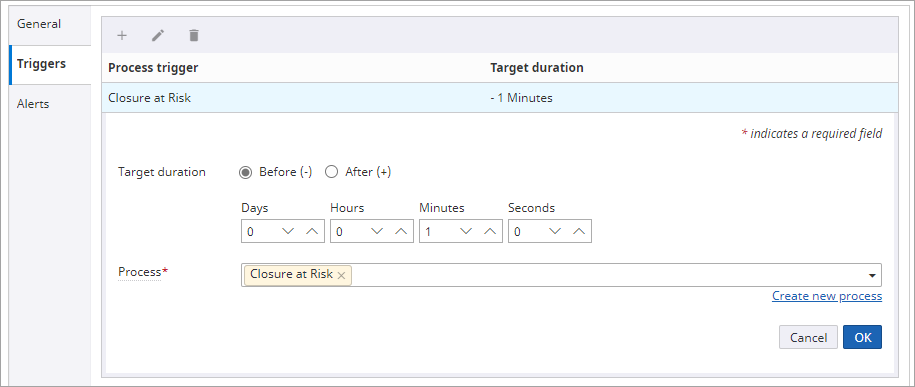
- For Target duration, select Before and set Minutes to 1.
- Click the Create new process link.
-
In the
Process name box, enter
Closure at Risk as the name of the process and click
OK.
The process is automatically created with the appropriate initialization parameters. You can customize this process later as needed.
- Click Add. The trigger is added to the milestone.
-
Click the
Triggers tab and click
.
- Click Add to save the milestone.
Create the third milestone: Close
Finally, create the third milestone called Close to occur two minutes after the Resolved milestone is met. So that even if an initial target is set, when the Resolved milestone is met, the Close milestone is recalculated automatically, and its target is reset.
If the Close milestone is not met, add a task for the Incident Management Team to investigate why the milestone is not met and take appropriate action. But rather than creating a separate process, add a task to this case which will appear on the Incident Management Team’s work queue.
-
On the
Milestones page, click
New.
The New milestone dialog box appears.
- In the Name box, enter Close.
-
To indicate that this milestone should occur two minutes after the Resolved milestone.
- On the Expected duration list, select Relative. The Milestone and Offset options appear.
- On the Milestone list, select Resolved.
- For Offset, select After and set Minutes to 2.
- Select Update target date when relative milestone met.
-
To send an alert to the
Incident Management Team, do the following:
-
Click the
Alerts tab and click
.
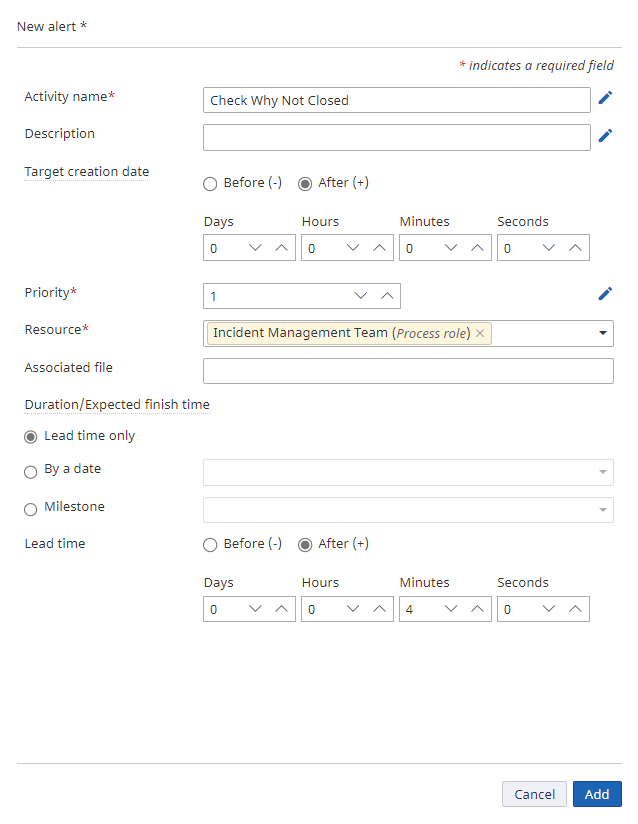
The New alert dialog box appears.
- In the Activity name box, enter Check Why Not Closed.
- To allow the alert to be created as soon as the Close milestone is missed, leave the target creation date (Days, Hours, Minutes, and Seconds) to 0.
- For Resource, click the Process role tab and select Incident Management Team.
-
To allow this task to be completed within four minutes of being created, for
Lead time, select
After and set
Minutes to
4.
Do not associate a form to your incident now, but create one later and associate as needed.
- Click Add to save the alert.
-
Click the
Alerts tab and click
.
- Click Add to save the milestone.