
Set up states
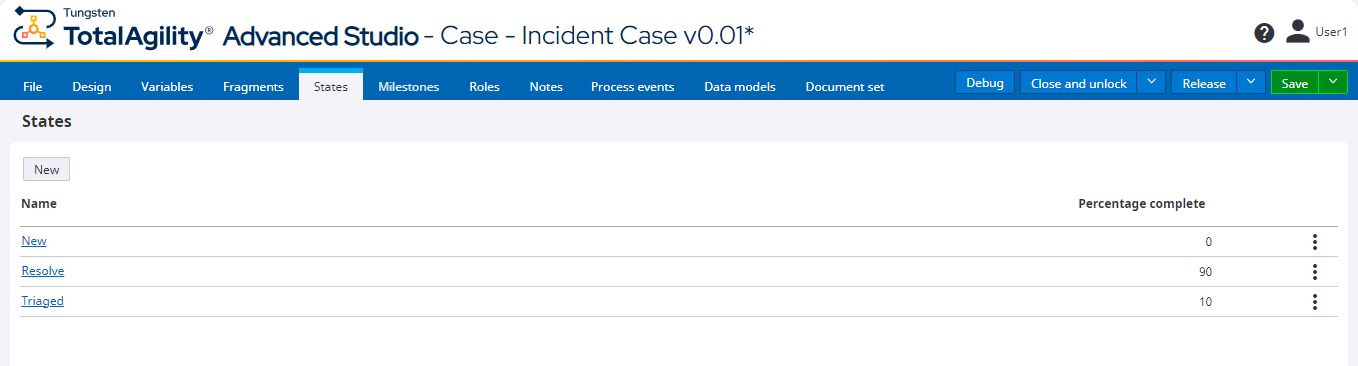
Set up the case to go through the following three states.
-
New: The case has been raised but not yet triaged.
-
Triaged: The case has been triaged but not yet resolved.
-
Resolved: All work has been completed and only the final closure steps are required.
You can set the following options when the case goes into a state.
- Set percentage complete.
- Set the job to restart at a specific activity.
- Raise a business event to set the metric of a new case.
- Create a new job action to start a new job on a given process.
Create the first state: New
-
On the process modeling bar, click the
States and click
New.
The New state dialog box appears.
- In the Name box, enter New.
-
Leave the
Percentage complete as
0.
-
To raise the business event for the
New state:
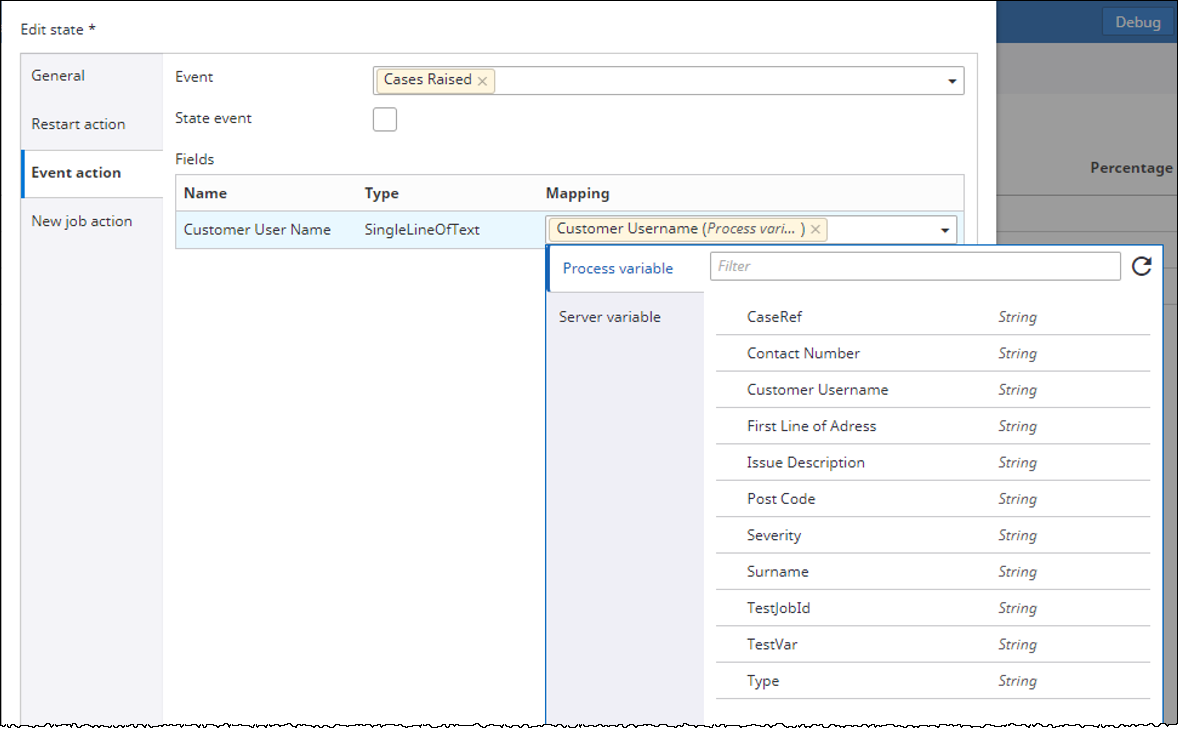
- Click the Event action tab.
-
On the
Event list, select
Cases Raised.
This event is available under Incident Management category.
- Map the Customer Username process variable to the Customer User Name field.
-
Click
Add.
You can also configure a business event to fire when an activity is completed.
Create the second state: Triaged
- On the States page, click New.
- In the Name box, enter Triaged.
- Enter 10 for Percentage complete to indicate that you are 10% through the process.
- Click Add.
Create the third state: Resolved
- On the States page, click New.
- In the Name box, enter Resolved.
- Enter 90 for Percentage complete to indicate that you are 90% through the process.
- Click Add.