
Triage the cases
-
Allow a few seconds of delay between creating the Issues and completing the task.
-
Triage three incident cases for this tutorial.
-
Identify the Triage activity associated with an Incident Case by viewing the case reference number of the Triage activity. This also applies to other activities.
-
Close the case in time; otherwise, an activity called Check why not closed is added to the incident case and assigned to the Incident Management Team.
-
From the
To Do menu, click
Work Queue.
The Work Queue page appears.
-
On the
Work Queue page, select the
Triage activity of each case, and configure the following:
- For the first
Incident Case:
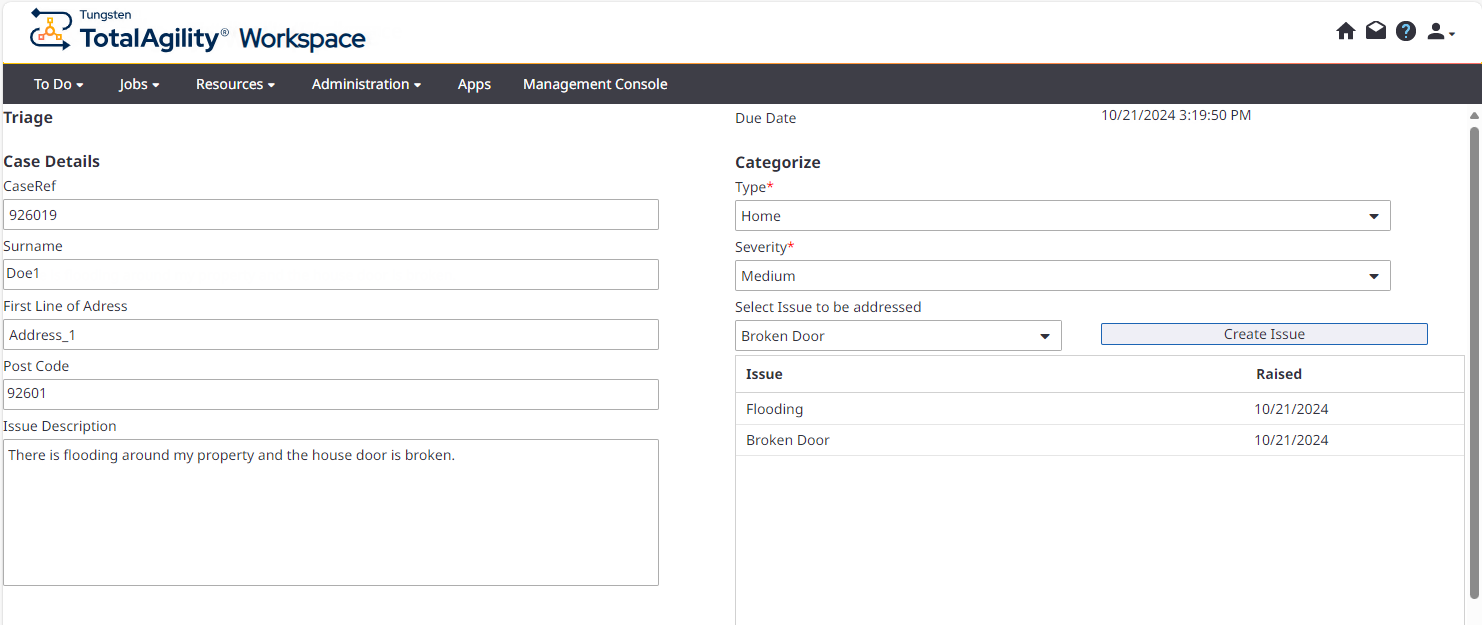
- Set Type to Home and Severity to Medium.
-
Select the Flooding issue and click Create Issue.
-
Select the Broken Door issue and click Create Issue.
-
Click Complete.
-
For the second Incident Case:
-
Set Type to Facilities and Severity to Low.
-
Select Broken Door, click Create Issue, and then click Complete.
-
-
For the third Incident Case:
-
Set Type to Land, Severity to High.
-
Select Flooding, click Create Issue, and then click Complete.
-
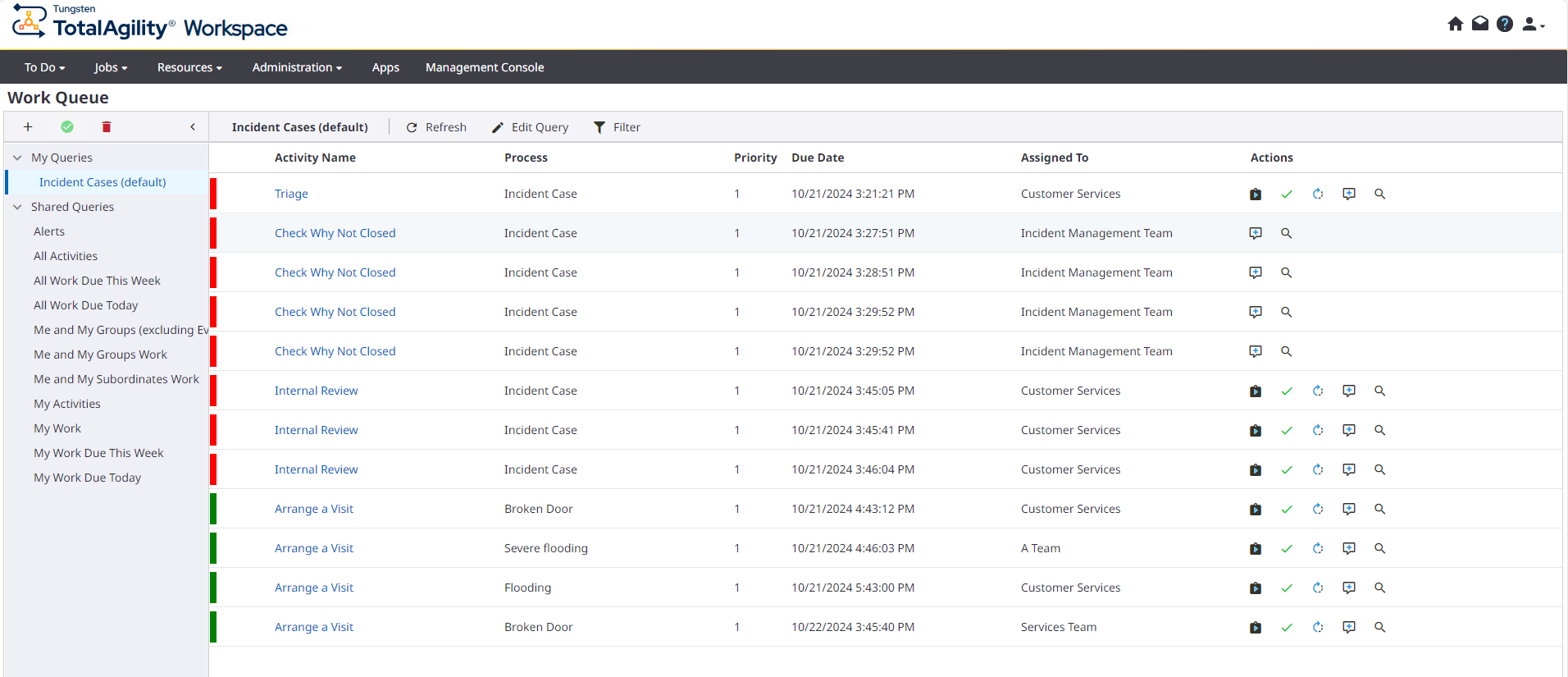
For all the cases, applicable skins are created with associated processes according to their severity. For example, the Severe Flooding skin is associated with the third Incident Case, and the Severe Flooding process is added to the Jobs page. For details, see Skins.
On the Work Queue page, the Type field shows different values in different processes highlighting the scope defined in the work type field.
- For the first
Incident Case: