
View the live jobs with details
-
From the
Jobs menu, click
Find.
The Jobs page appears.
-
In the left navigation pane, click
Incident Cases (default) or
Active jobs created today.
The live jobs that are created today appear on the Jobs page.
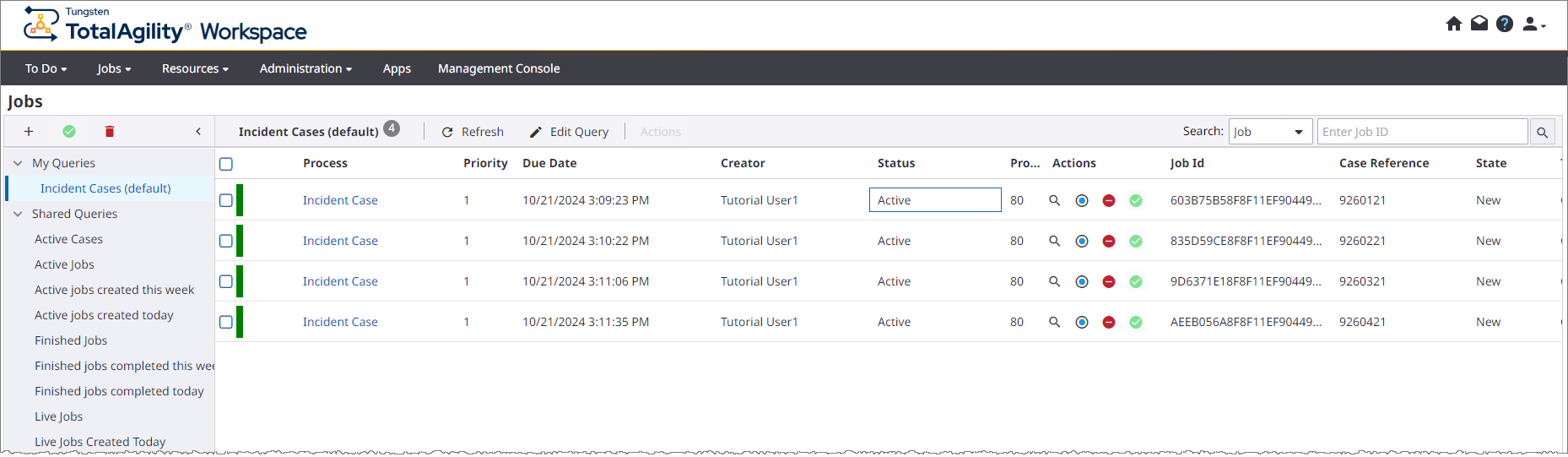
If the Escalation in Cases process appears, it indicates that the escalation has been raised, as more than the predefined (three) cases are raised.
-
Click any
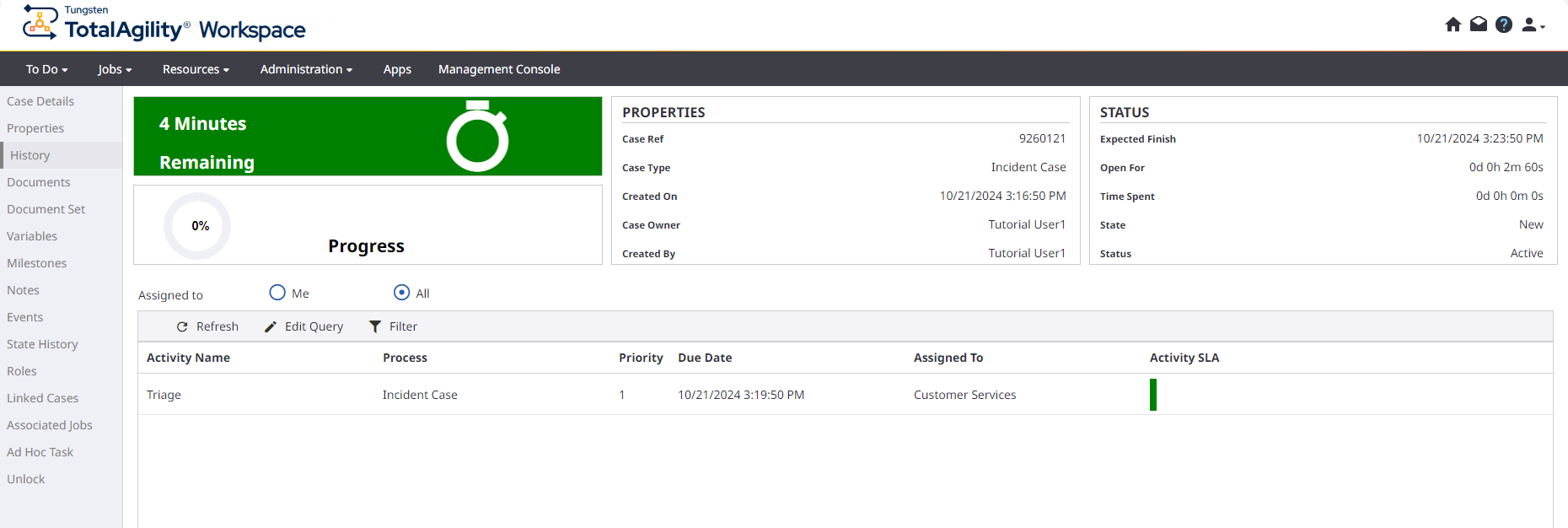
Incident Case. You can view the following updates.
-
The timer background is green.
-
The Triage activity is pending and assigned to Customer Services.
-
Due Date is equal to the target date of the Triage milestone.
-
Case Ref is assigned.
-
State is New.
-
Progress is 0%.
-
-
Refresh the page after a few minutes.
-
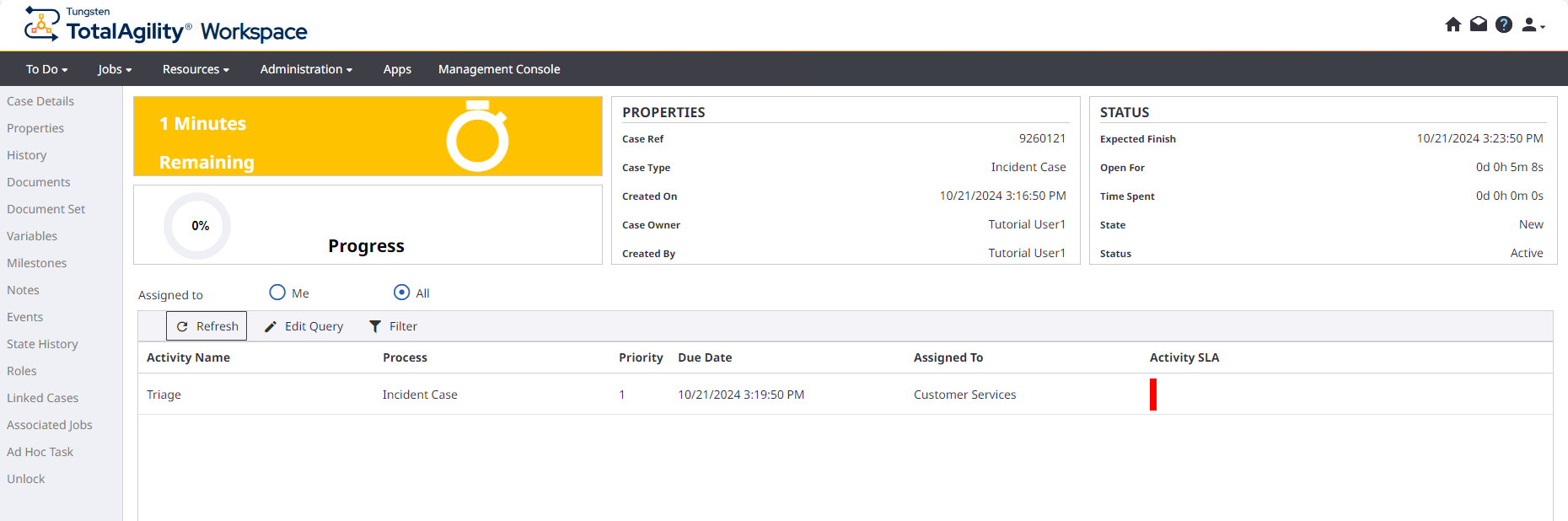
The timer background of the case turns amber within two minutes of completion.
-
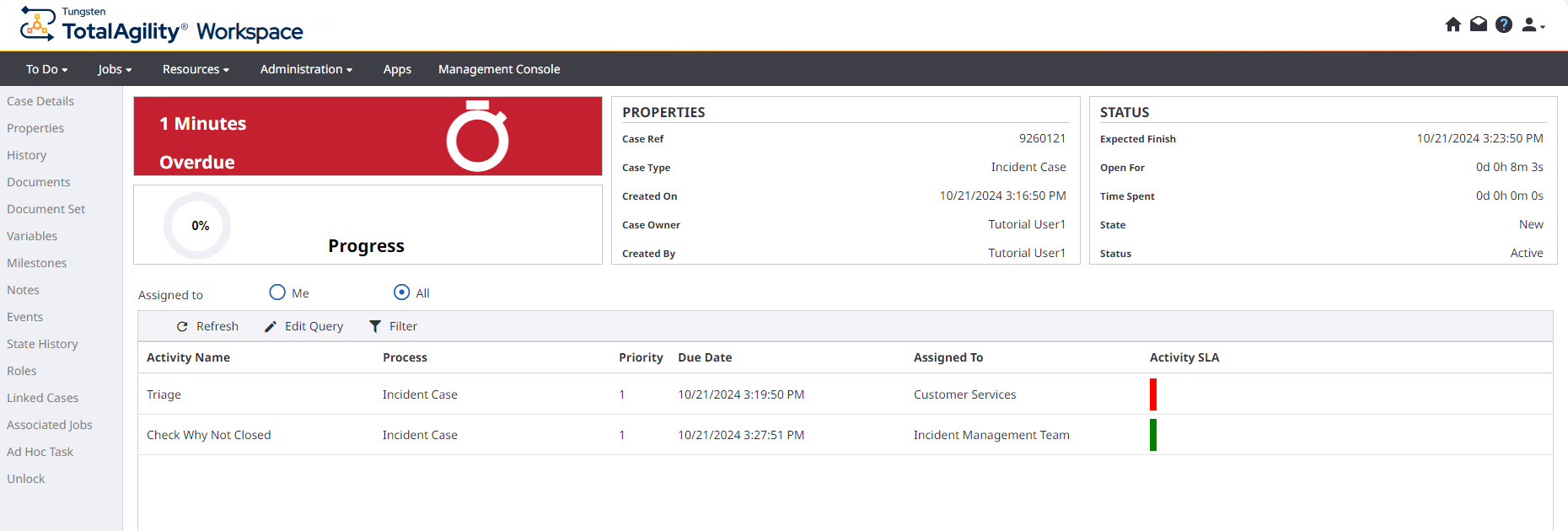
The timer background of the case turns red within one minute of completion.
-
-
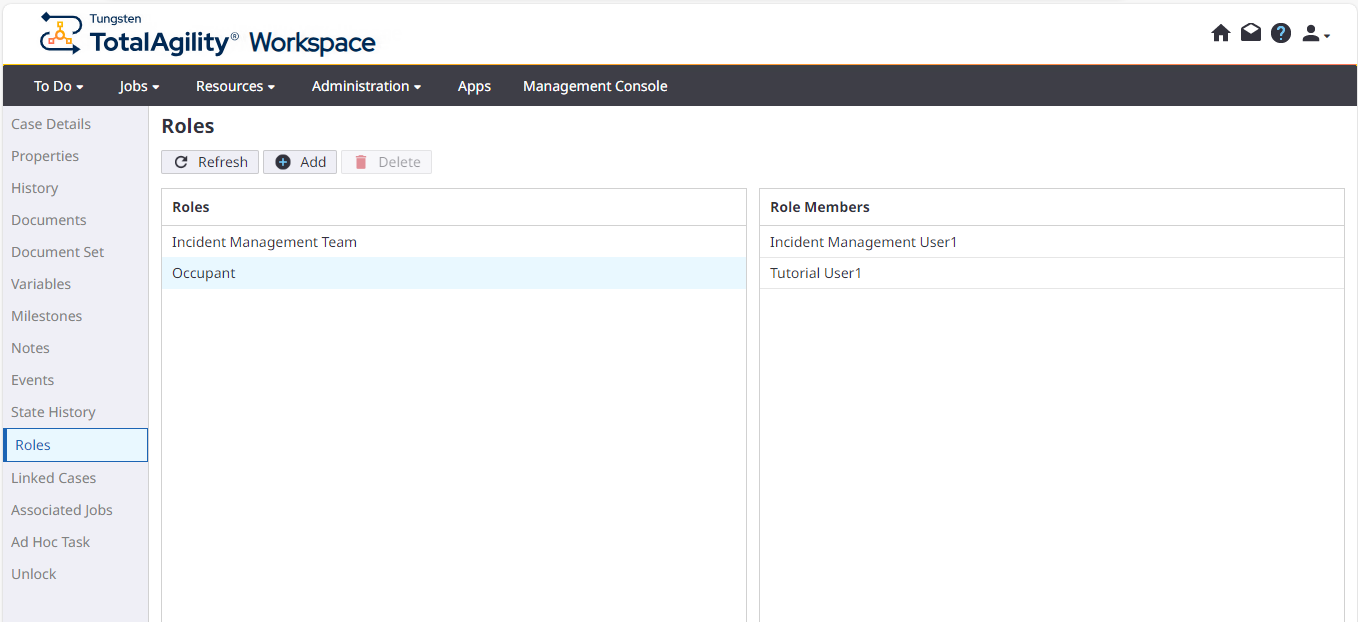
In the left navigation pane, click
Roles and verify that the floating role is set to the Incident Management
User.
-
In the left navigation pane, click
Milestones and ensure that the Milestones targets are set as follows:
Milestone name
Target Date
Triage
1 minute after creation
Resolved
3 minutes after creation
Close
2 minutes after resolved