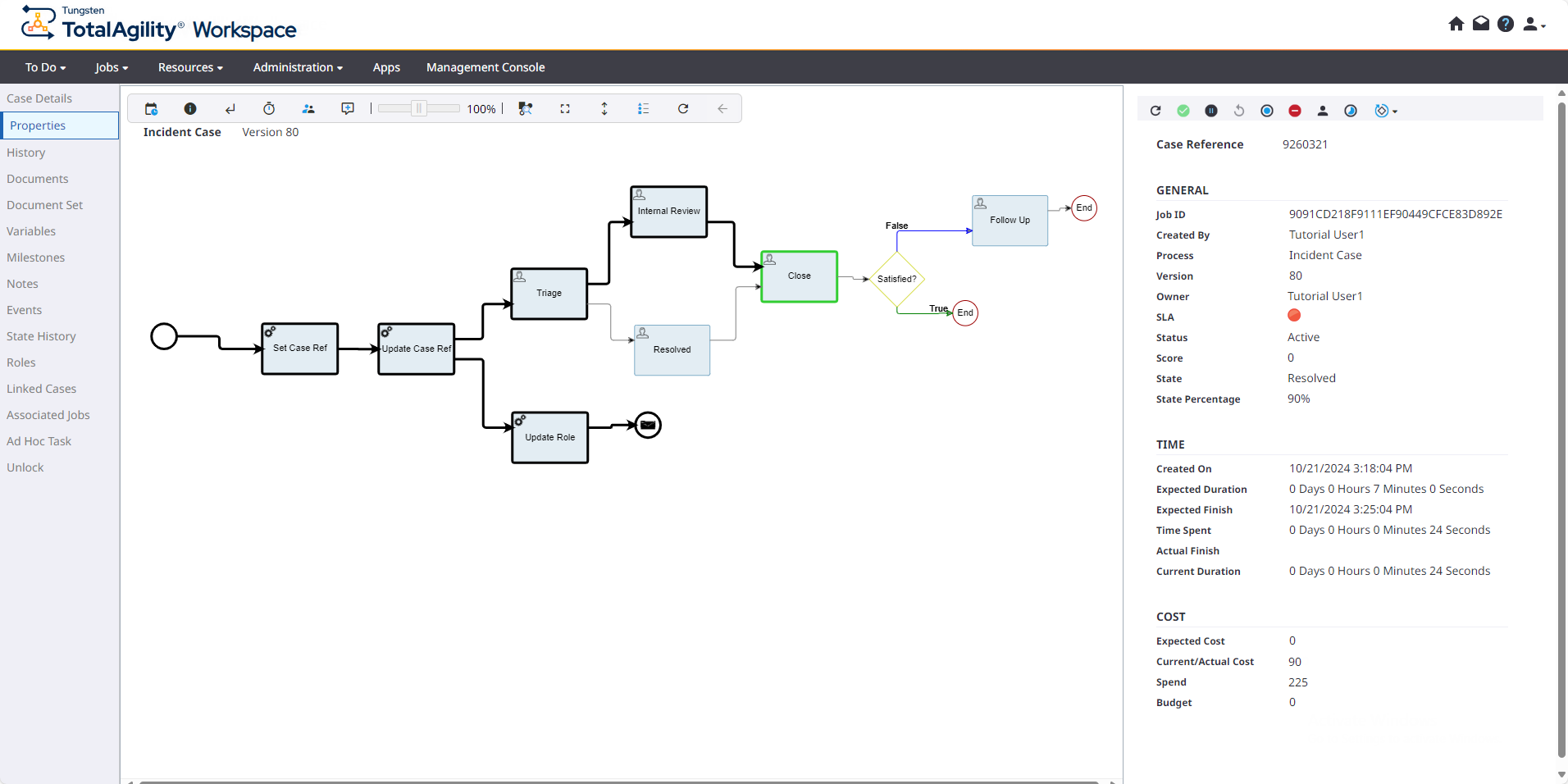
Third Incident Case
For this case, you will take the Visit activities and complete them. You will also view the progress of the case on the map after triage.
- On the Work Queue page, open its Arrange a Visit activity.
- Set the Visit Date not greater than the activity's target date and click Complete.
-
On the
Jobs page, click the third
Incident Case to view its properties.
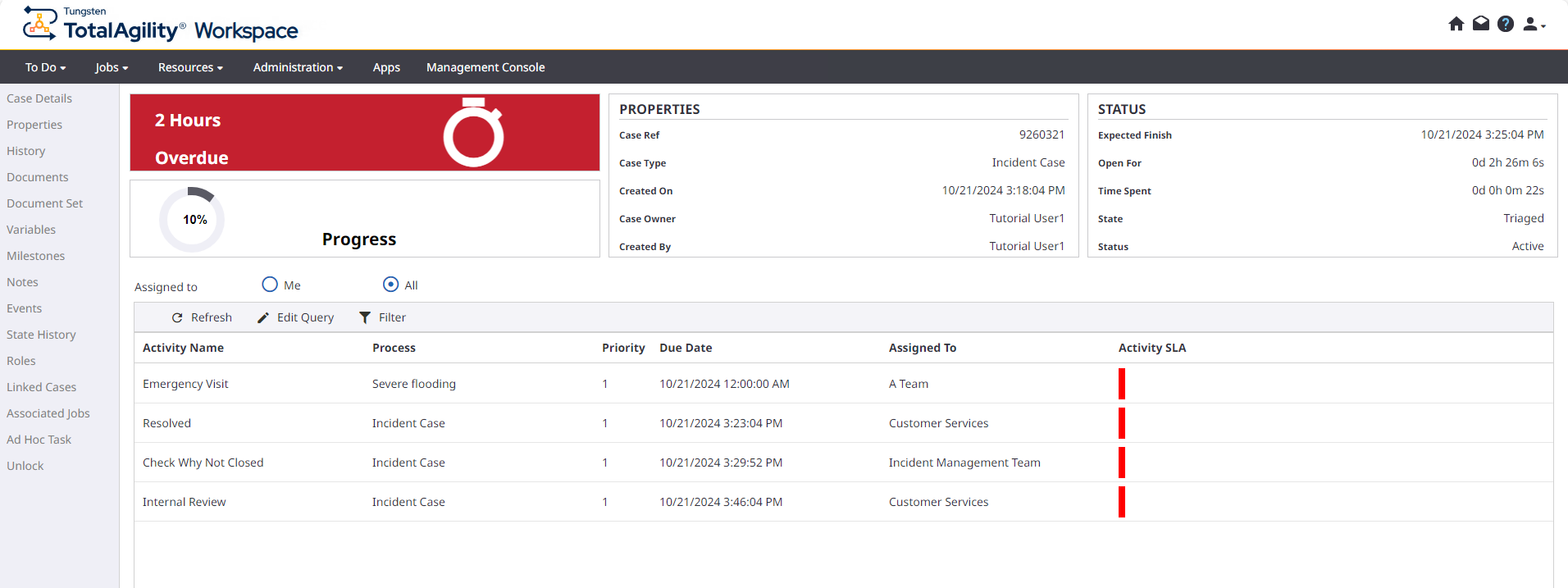
The Severe flooding process is created and assigned to A Team.
-
To view the job, in the left navigation pane, click
Properties.
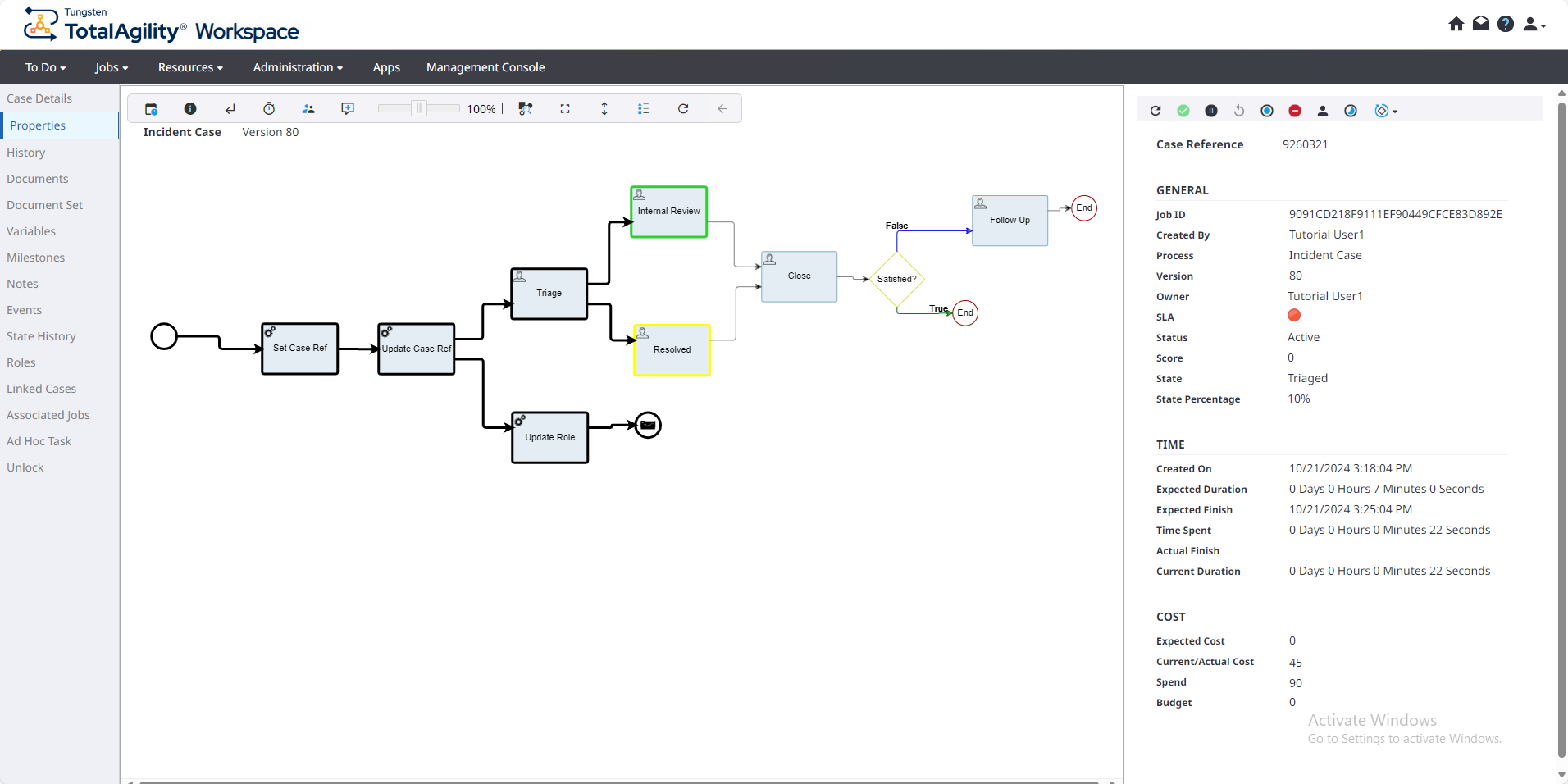 The Internal Review activity appears as pending (highlighted in green) and the Resolved activity is awaiting event (highlighted in yellow), which is waiting for the issues jobs to be completed before the case can continue.
 -
On the
Work Queue page, complete the
Emergency Visit activity and the subsequent activities associated with the
Severe flooding process.
See step 5 of First Incident Case for information on how to complete an activity.
Make sure that visit dates are set correctly.
- On the Work Queue page, complete the Internal Review and Resolved activities.
-
On the
Jobs page, click the third
Incident Case, and then in the left navigation pane, click
Properties.
The pending activities are not available anymore in the case.