
Set triggers
In case you missed any key performance indicators and want to make your case more robust, you can set up the budget and duration triggers.
Set the budget trigger
Trigger a process if you get within 90% of your budget.
You can either create a new process or use an existing one. In this tutorial, you create a new process.
-
On the
Time and cost tab of case properties, under
Duration/Budget triggers, click
for
Triggers.
- Set the trigger at 90 % of Budget.
-
Click the
Create new process link.
The Create new process dialog box appears.
-
In the
Process name box, enter
Budget Trigger as the name of the of the trigger and click
OK.
The process is automatically created with the appropriate initialization parameters. You can customize this process later as needed.
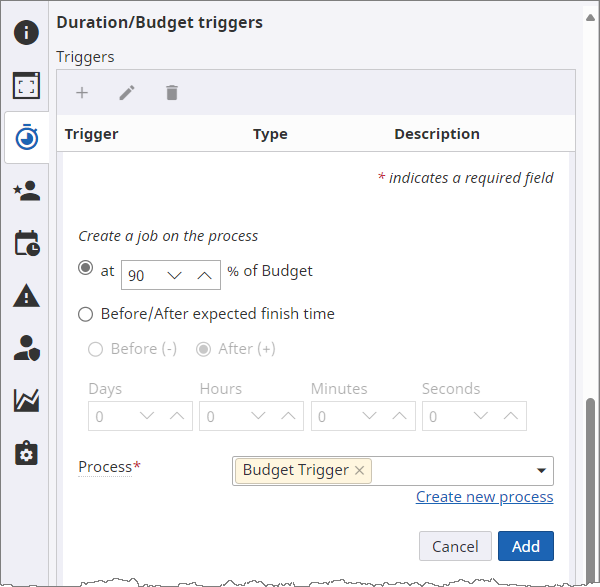
- Click Add.
Set the duration trigger
Trigger a process when you run out of time.
- On the Time and cost tab of case properties, under Duration/Budget triggers, click for Triggers.
- Select Before/After expected finish time.
- Leave the duration (Days, Hours, Minutes, and Seconds) to 0. This enables the process to be triggered exactly when the target date and time are reached.
-
Click the
Create new process link.
The Create new process dialog box appears.
-
In the
Process name box, enter
Duration Trigger as the name of the trigger and click
OK.
The process is automatically created with the appropriate initialization parameters. You can customize this process later as needed.
- Click Add.