Skins
Process skins allow runtime changes to the base process based on a rule.
For the Flooding case fragment of the Incident case, create two skins.
-
Severe flood: Where the more experienced team (Disaster management team) takes quicker action to address the issue.
-
Water logging: Where the less experienced team (Waterworks team) addresses the issue.
-
On the
TotalAgility Advanced Studio
Home page, navigate to
and click
New.
The Create new skin dialog box appears.
-
In the
Name box, enter
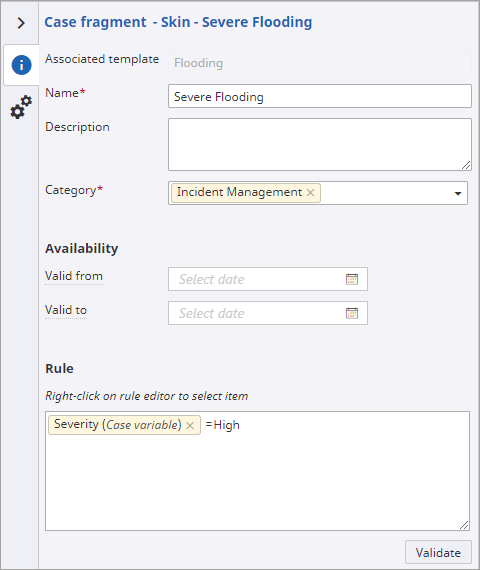
Severe Flooding and on the
Template list, select
Flooding.
The Template list includes the fragments for which the Support skins option was selected at the time of creating the fragment.
- Click OK. A variant of the Flooding fragment opens in the new browser tab.
- On the Info tab, on the Category list, select Incident Management.
-
To define the rule for the fragment based on the severity reported in the case, right-click the rule editor and select
the
Severity case variable, then enter
= High.
-
Rather than being driven by the milestone, set the fragment to resolve within 12 hours, overriding the due date.
- Click the Settings tab.
- Select the Expected duration check box and set Hours to A Team12.
-
Select the
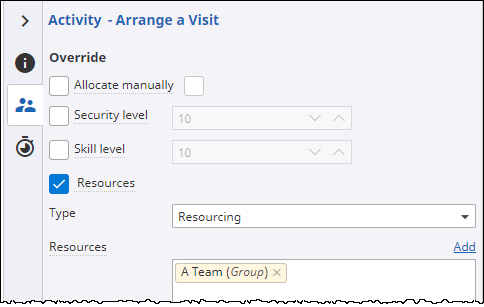
Arrange a Visit activity and update its target due date to 1 hour and resource to .
- On the Time and cost tab, select Target due date and set Hours to 1.
-
On the
Resource assignment tab, select the
Resources check box, remove the
Services Team group, and add the
A Team group.
- Select the Visit activity and change its Name to Emergency Visit.
- Change the resources of the remaining nodes to the A Team.