
First Incident Case
This case will address the Flooding and the Broken Door issues. The teams assigned to these issues are Customer Services, Services, and Incident Management.
-
From the
Jobs menu, click
Find.
The Jobs page appears.
-
On the
Jobs page, click the first
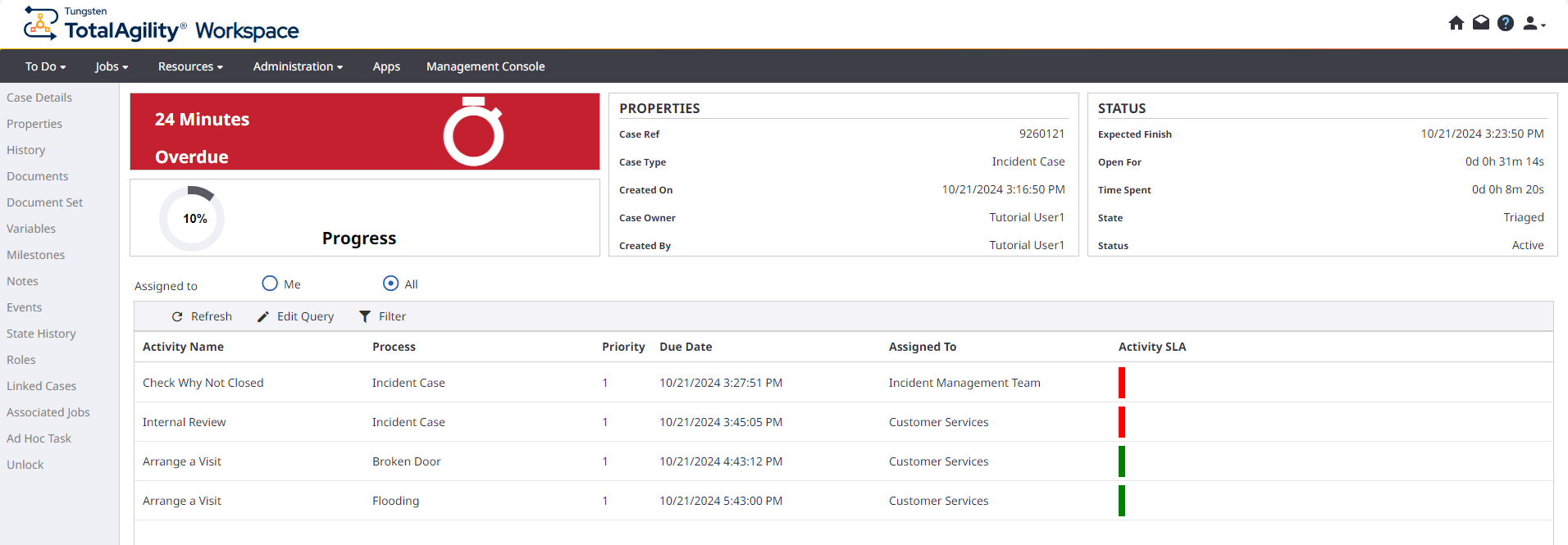
Incident Case, and you can view the following changes.
-
State is Triaged.
-
Progress is 10%.
-
-
In the left navigation pane, click
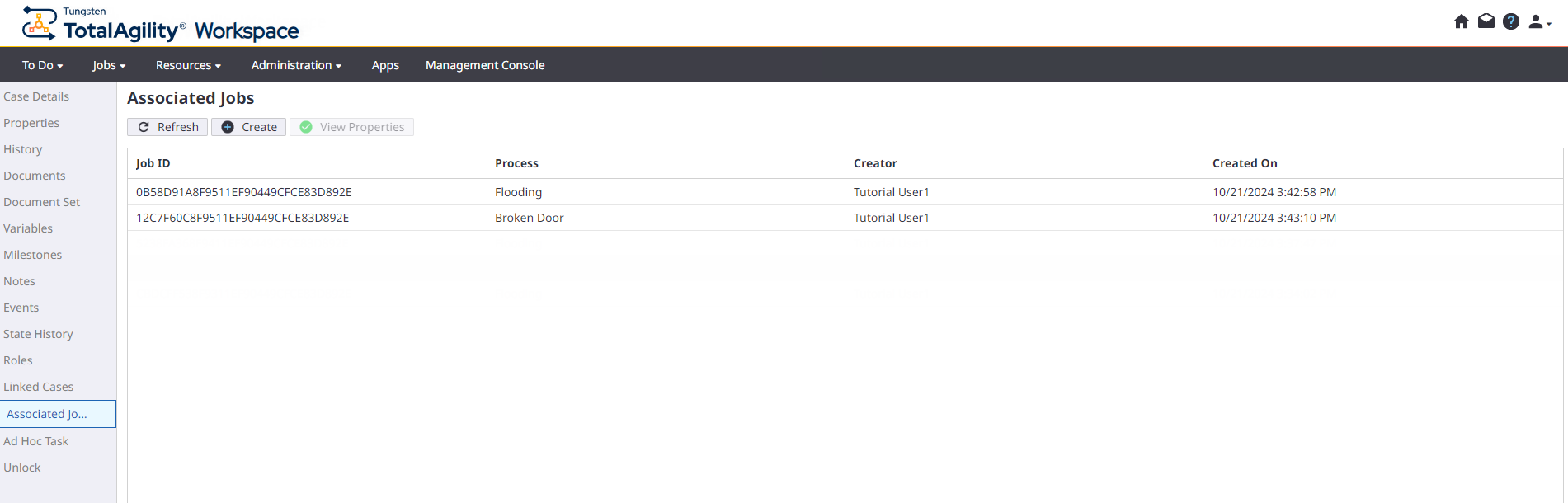
Associated Jobs. The
Flooding and
Broken Door processes are created for this case.
-
Select the
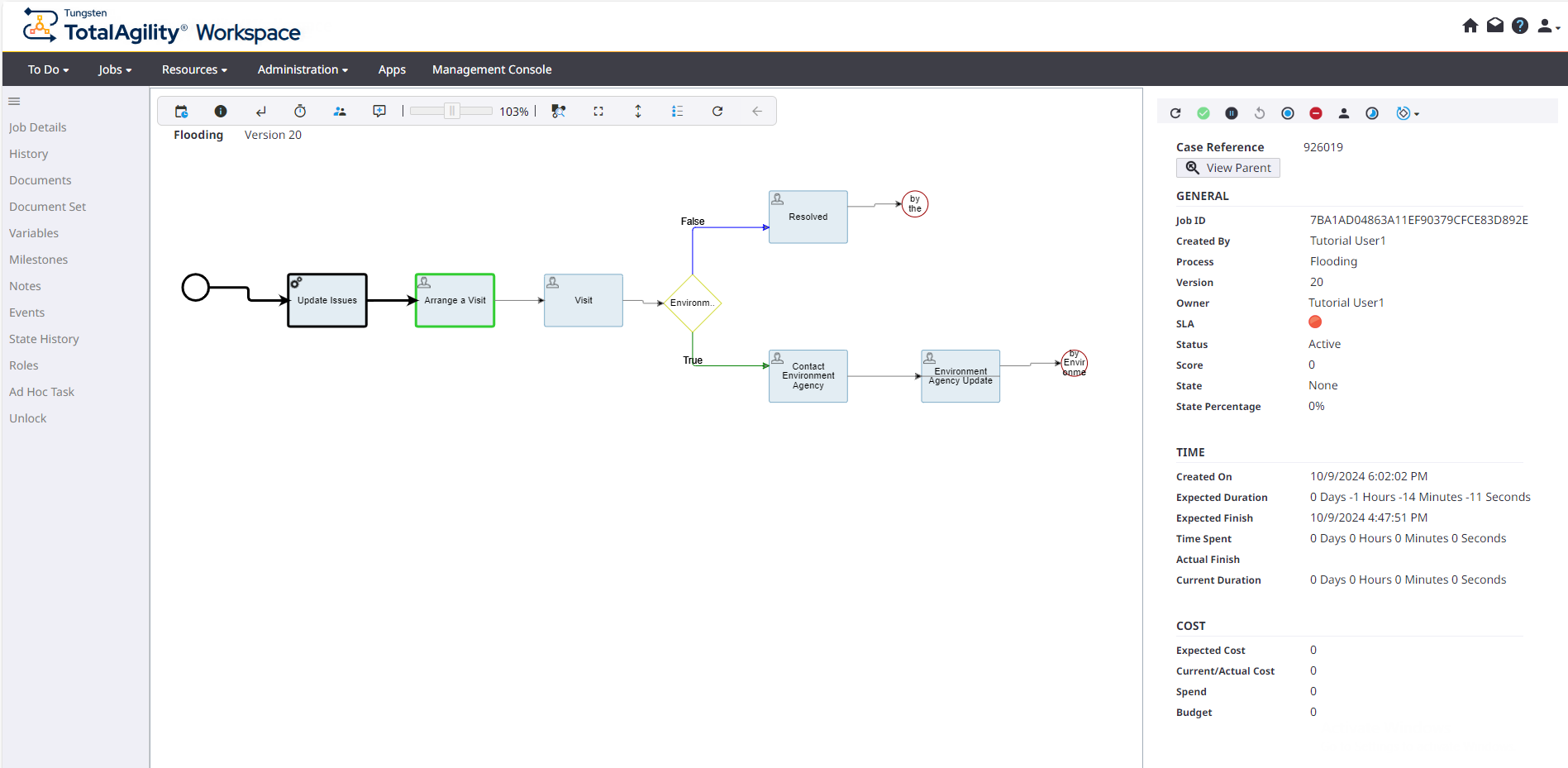
Flooding process and click
View Properties to view its properties. The expected finish date appears as
the value of the target date of the
Resolved milestone.
-
Complete the activities for the
Flooding process.
- Click the Arrange a Visit activity and click Complete.
- Click the Visit activity, select the Environment Agency Required check box, and click Complete.
- Click the Contact Environment Agency activity, set the Environment Agency Date equal to the Due Date of this activity, and click Complete.
-
Click the
Environment Agency Update activity; keep the
Resolved check box clear to indicate that the visit has not occurred, enter a new date, and then click
Complete.
The Environment Update activity is still pending with the latest scheduled date.
-
Again, click the
Environment Agency Update activity, select the
Resolved check box to indicate that the visit has occurred, and click
Complete.
The Flooding process is completed.
-
Complete the activities for the
Broken Door process.
- Click the Arrange a Visit activity and click Complete.
- Click the Visit activity, keep the Carpenter Needed check box clear, and click Complete.
- Click the Resolved activity and click Complete.
-
On the
Jobs page, click the first Incident Case, and then in the left navigation
pane, click
Properties.
Observe that the Spend has now exceeded the Budget. While $45 is the cost of the Incident Case itself, the overall spending (including all associated jobs) has exceeded our budget of $100. This results in the creation of the Budget trigger job.
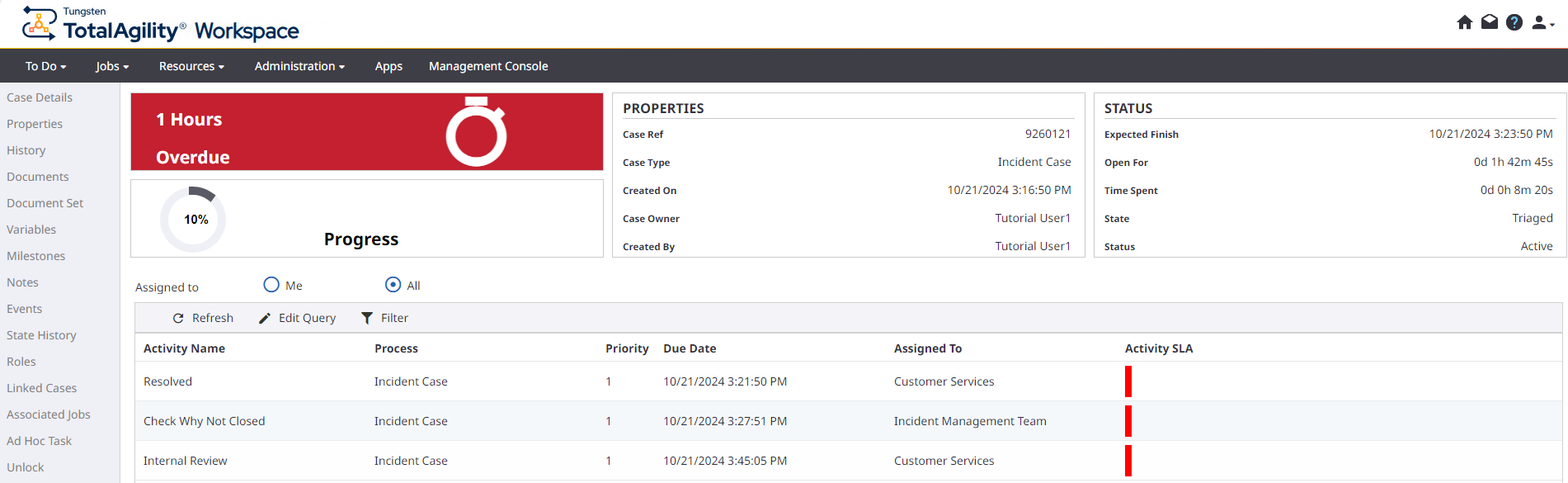
All issues have been addressed but note that the Resolved, Check Why Not Closed, and Internal Review tasks are now pending.
-
To view the properties of any associated jobs, in the left navigation pane, select
Associated Job and click
View Properties.
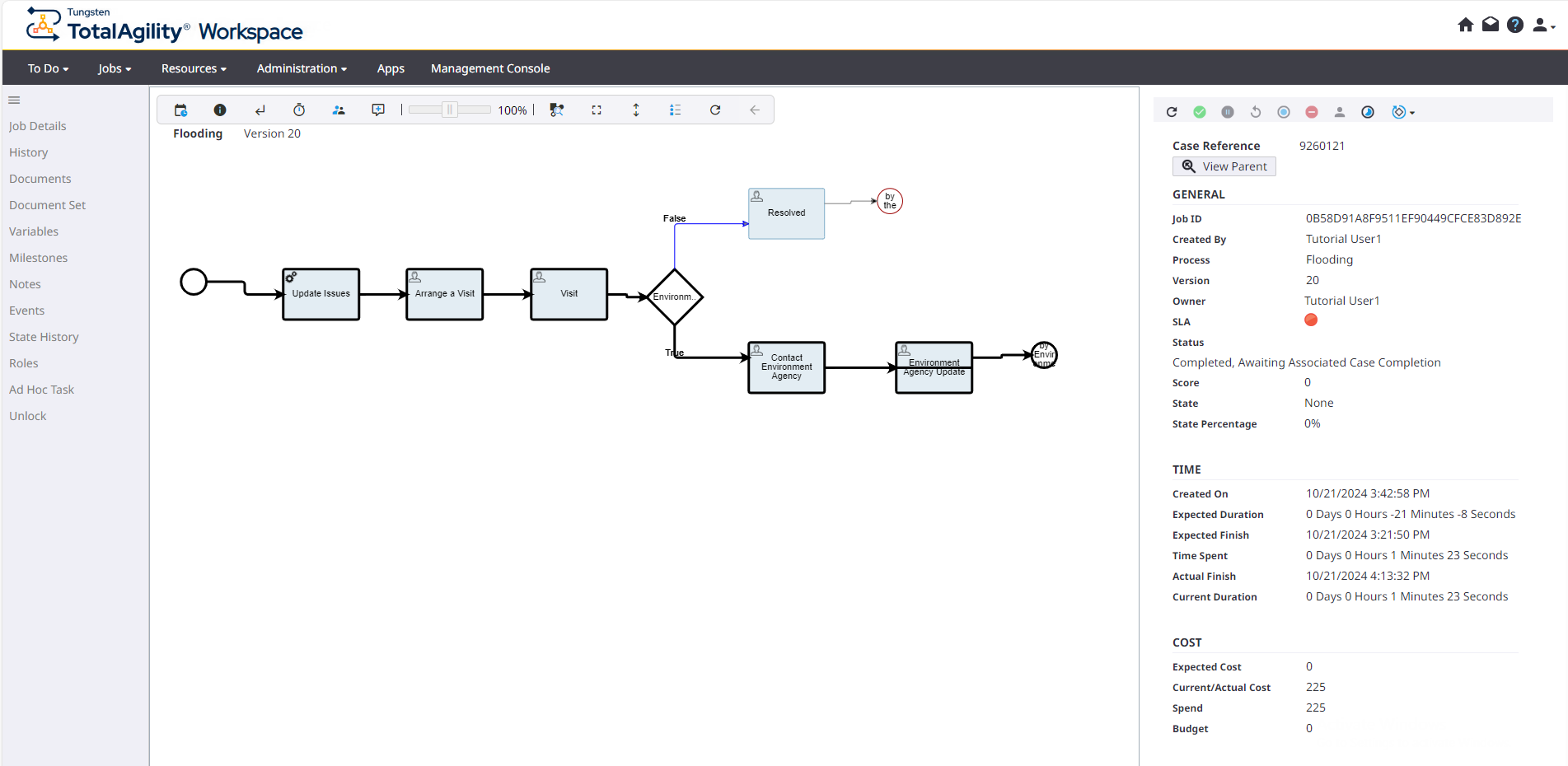
The Status of the job appears as Completed, Awaiting Associated Case Completion.
This means, though the job is completed, it will not go through the normal archive processes until the main case is completed.
- On the Work Queue page, take the Resolved task of the case and complete it.
-
On the
Jobs page, to view the case details, click
Incident Case.
-
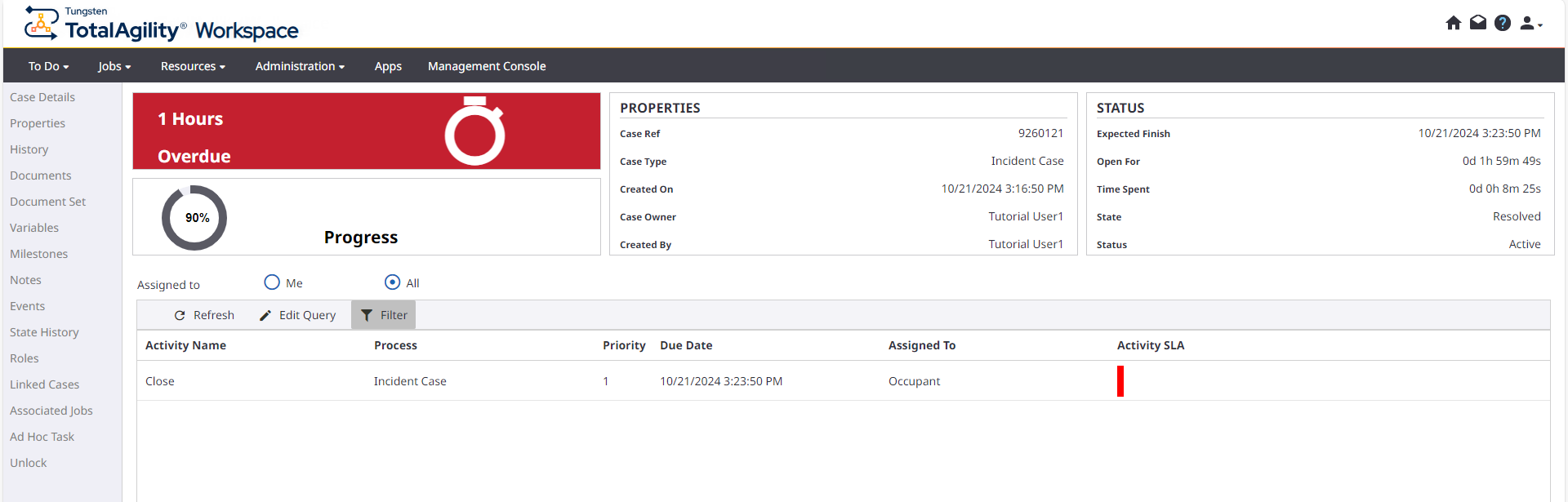
Progress is 90%, that is, the case is 90% complete.
-
State is Resolved.
-
There are no pending activities, as the Close activity is assigned to the occupant role (an external user).
-
-
To view the resources assigned for the
Close activity:
- In the left navigation pane, click Properties.
-
Select the pending
Close activity (highlighted in green) and then select the resources to view who is assigned to this activity.
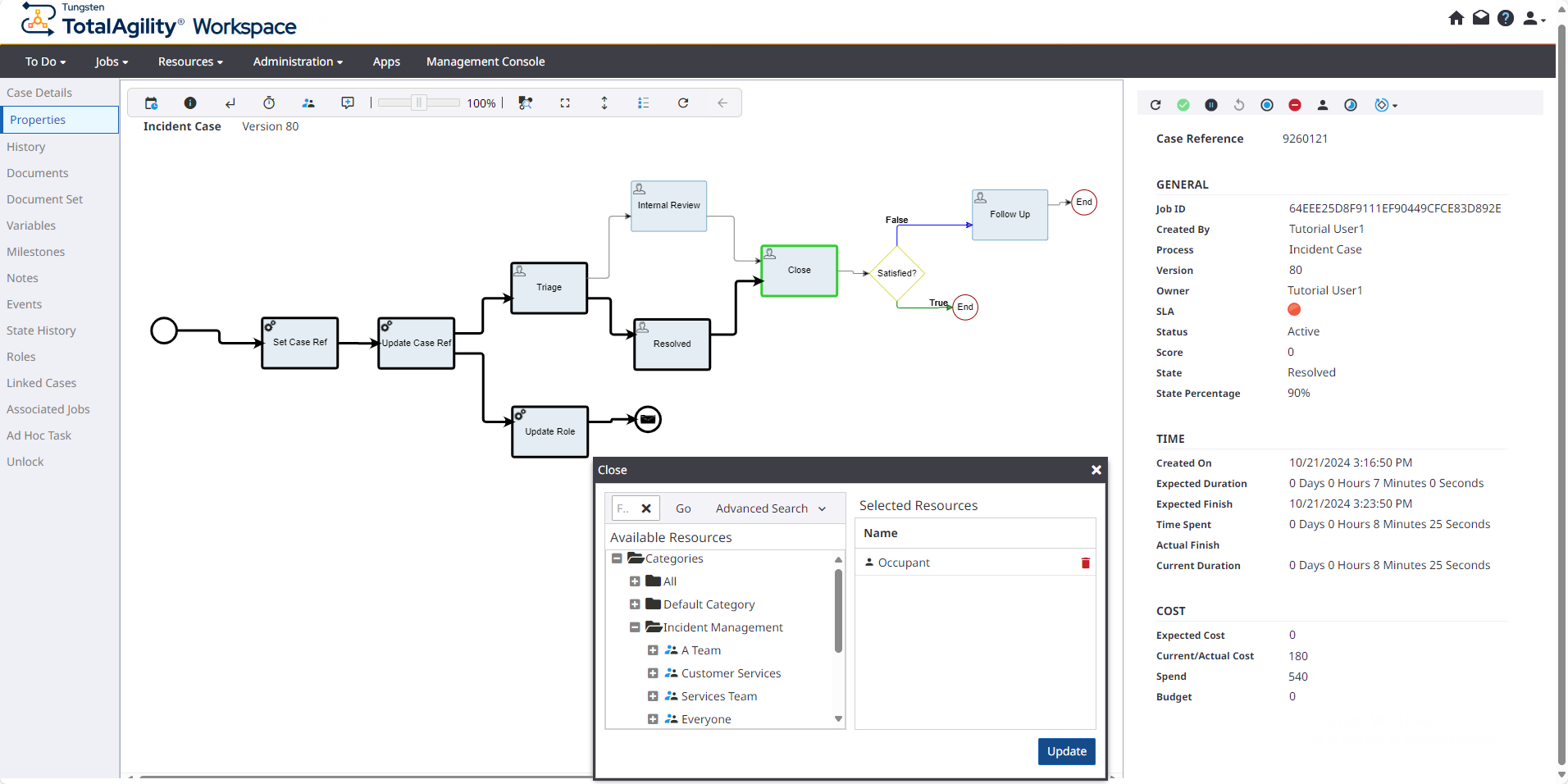
Once all the activities are completed, the Close activity is assigned to the occupant. The occupant reviews the solution, and if satisfied, closes the case. See Close the Incident cases for instructions.