
Create or edit a Table-Form pair
Creating and editing a pair steps through the same screens. In the case of creating a new pair, no information will be pre-filled. If editing, the current settings for the pair will be displayed. You may cancel at any time, but all information/changes will be lost.
-
Select database table
Select the database you want the form to pick up data from by filling in the connection/credentials information. Then, select the table to read data from in the list. Click Next to proceed to step 2.
-
Set up table migration
Any table to be monitored must have a single column that is unique to each row. Select it as the Unique ID. The Migration column is used to track which rows have been processed by PDF Forms Monitor and which have not. This column must be of the 'Int' data type.
Example:
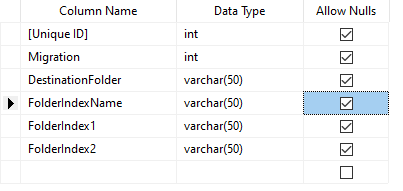
The Get value specifies the rows that should be regarded as unprocessed. The Update value is what the Migration column value will be changed to after processing by PDF Forms Monitor. These two values must be different.
You may optionally check for a specific value in a second column called the Condition column. If this column and a value are specified, only those rows matching both the Get value in the Migration column and the Condition value in the Condition column will be processed by PDF Forms Monitor for this configuration.
The security section allows for the selection of a database column that will be used to set either or both the folder security class and document security class. This class should match a class name defined in .
After selecting the values, click Next.
-
Select
PSIsafe Desktop
destination
Define the cabinet to which the form will be created and filed. Enter the user name and password for the PSIsafe Desktop User with the proper permissions. Ensure this user has create rights to the cabinet defined.
-
PSIsafe Desktop/Database match up
This step allows for mapping of fields in the data table being monitored to the cabinet folder indexes for the cabinet selected in step 3. The data table fields appear in the top left grid and the cabinet folder indexes appear in the top right grid. The bottom grid shows the results of the fields mapped from the data table to the folder indexes.
To map a field to an index, click the data column name and then click the corresponding cabinet index. Click Add to complete the mapping. Once the fields are mapped, select the row in the bottom grid that will be used as the unique index in cabinet and then click Make Search Index.
-
Select form
Select the cabinet form template that will be populated with data from the data table and created in PSIsafe Desktop. Select the preferred template and click Next to proceed.
The PDF Forms correspond to PSIsafe Desktop Templates that are configured as PDF Forms (electronic forms type under Manager).
The PDF Form Template and corresponding linked indexes must be pre-configured. For more information, see the Tungsten PSIsafe Desktop Administrator Help.
-
Form/Database match up
This step is used to map the data table fields to the form fields for population of the form.
Click the data column name in the top left grid, then click the corresponding form field in the top right grid. Click Add to map the fields to each other. The result of the mapping appears in the bottom grid.
If the data column names are defined with the same names as the form fields, clicking Add by Name will automatically map the data fields with the form fields. This can save time in setting up the mappings. (This function is not case sensitive and will account for underscores and spaces).
Once all the data fields are mapped, click Next to continue.
-
Document description
Select the data to be used to create the document name. You can use up to ten database columns. In addition, a date column can be selected as the first column and the template name can be appended. At least one column must be selected to be applied to the document description. The description selected here will be the document title of the item when it is filed in PSIsafe Desktop. It will appear as the Document Title in the Document List of a Folder.
-
Workflow
This step is optional.
The newly created forms can be automatically routed using Workflow. They may be routed to a specific user or group, using a rule, or using data from the table.
If a rule is selected, it must not have an initial condition requiring user input.If information from the table is to be used, the column to be monitored must be specified. It may contain either a PSIsafe Desktop user/group name or an internal PSIsafe Desktop user/group database ID. It must also be specified whether the column contains users or groups.
All forms must therefore be routed to either users or groups. They cannot be conditionally routed to one or the other.
The remarks section will add a workflow note for each form routed and will appear in the workflow remarks section.
-
Confirmation
On this screen, you can check that the correct information was entered. A section corresponding to each of the previous screens maybe be expanded or collapsed to view the details. If an error is found, click Back to go back and correct it.
Clicking Next on this screen will create the new Table-Form Pair or update the existing one.
- The final screen confirms creation or updating of the pair. Click Finish to return to the main screen. Upon creation, the Table-Form Pair is automatically enabled. However, because the service does not run while the form is open, you have the opportunity to disable it before any rows are processed.