Closing batches automatically when they are complete

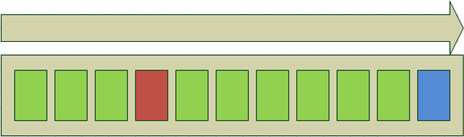
When you want to scan multiple batches without interruption, you can set scan profiles to close batches automatically.
Exceptions:
-
The last batch is never closed automatically, but must always be closed manually.
-
Batches with errors (for example errors in barcode detection) are not closed automatically.
-
Batches with scanner error information saved to their batch data (see step 5 below) are not closed automatically.
You must be an administrator to do this.
Barcodes must be used for batch separation (see instructions).
Use this procedure
-
Select > Scan profile management. The Scan profile management dialog is displayed.
-
In the left pane, right-click a scan profile and select Export configuration to open the Export settings dialog.
-
Select .
-
Click to save the settings.
-
Recommended: Include scanner error info in batch data.
If
( ) is clicked during scanning
Multiple batches are scanned.
During this process, the button
() is clicked. What happens?
-
All of the completely scanned batches are automatically closed and are given Ready status (or Export ok, if the batches are exported by asynchronous custom components).
-
The stopped batch can be edited.
If scanning is interrupted by an empty paper feeder, or if scanning is manually ended, then the most recently scanned batch is also closed automatically if you select (not ) and further batches are then generated by barcode detection.
Closing or deleting batches automatically when SCAN CLIENT closes
Limiting the number of open batches during scanning
© 2019 Kofax, Inc. All rights reserved. | Terms of Use