Configuring an exporter

This topic describes exporting batches via Windows Message Queue. This obsolete export method is provided for compatibility with previous versions of SCAN CLIENT. Newer export programs, for example the XBOUND Exporter and the ReadSoft INVOICES exporter, are custom components.
When scanned batches are released, by default they are closed directly (status Ready). (See What happens when batches are closed (released)? for more information.) However, you can configure SCAN CLIENT to transfer batches to an external exporter program. Use the below procedures.
There are separate, specific instructions for:
Before configuring an exporter
Microsoft Messaging Queue must be installed. The procedure for doing this depends on your operating system. As an example, this is the procedure to use on Microsoft Windows 7:
-
In Windows 7, open the Control Panel and click .
-
In the dialog, expand .
-
Select .

-
Click and wait for installation to complete.
-
Repeat the above procedure on each scan station.
Configuring an exporter
-
Select > Scan profile management. The Scan profile management dialog is displayed.
-
In the left pane, right-click a scan profile and select Export configuration to open the Export settings dialog.
-
Select .
-
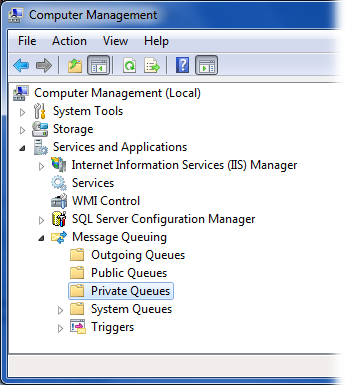
Specify a name for the message source used in Microsoft Message Queue. Two message queues are created for the current user:
-
<User name>_<message source>_scanclient
-
<User name>_<message source>_export
You can access these in Windows by selecting > > > . (Show me.)
The external program must know the name of the message source, for example via a configuration file.
-
-
Specify the complete name of the executable file. If it is not located in the SCAN CLIENT program directory, specify the path, as well.
-
Specify parameters for the external program. Use semicolons to separate multiple parameters.
SCAN CLIENT does not check whether the parameters or their formats are correct. The exporter must be able to interpret the parameters.
-
Optional: Select to close batches automatically when they are complete.
-
Click to save the settings.
-
Optional: Open the dialog > and set to . Otherwise, batches remain closed in that case.
What happens when batches are closed (released)?
Configuring and using your SCAN CLIENT custom component (add-on)
© 2019 Kofax, Inc. All rights reserved. | Terms of Use