
AI Agent user interface
When you open AI Agent from the TotalAgility Studio, the following is the default web page that loads.
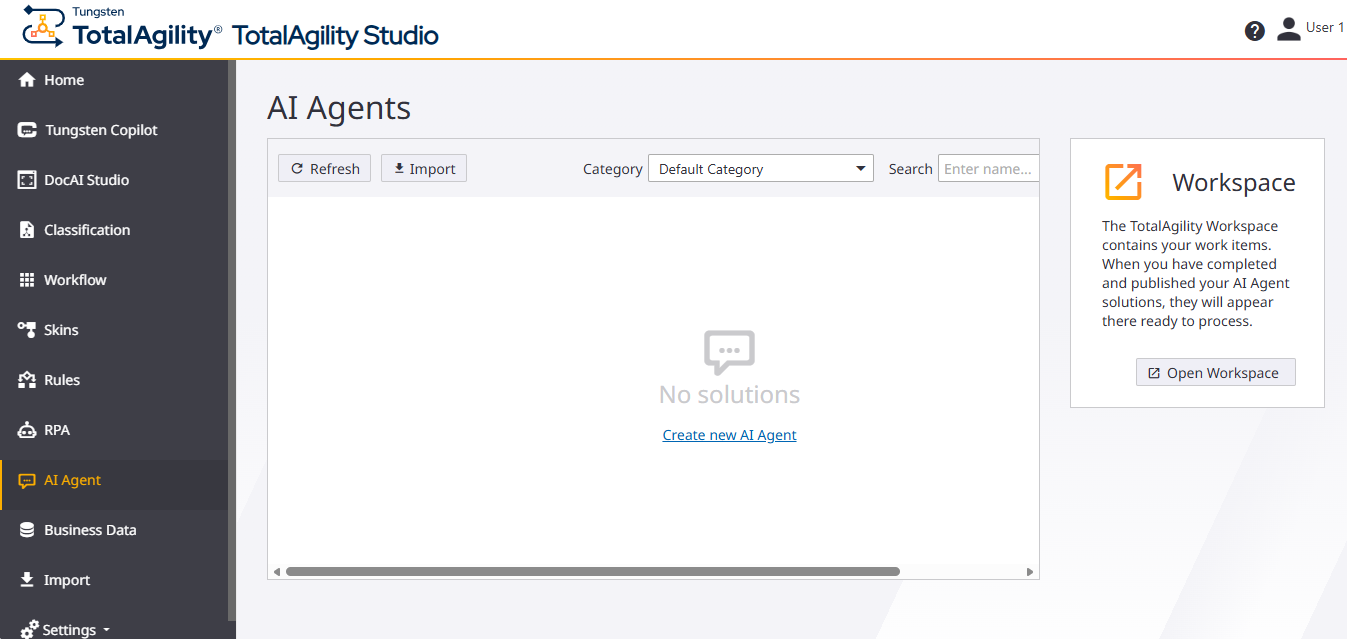
See TotalAgility Studio User Interface for a description of elements.
 Tungsten TotalAgility
-
The Tungsten TotalAgility logo. You can select this logo to return to the Home page from anywhere in the application.
When you already have existing AI Agent workflow solutions, the following is the initial view of the AI Agents.
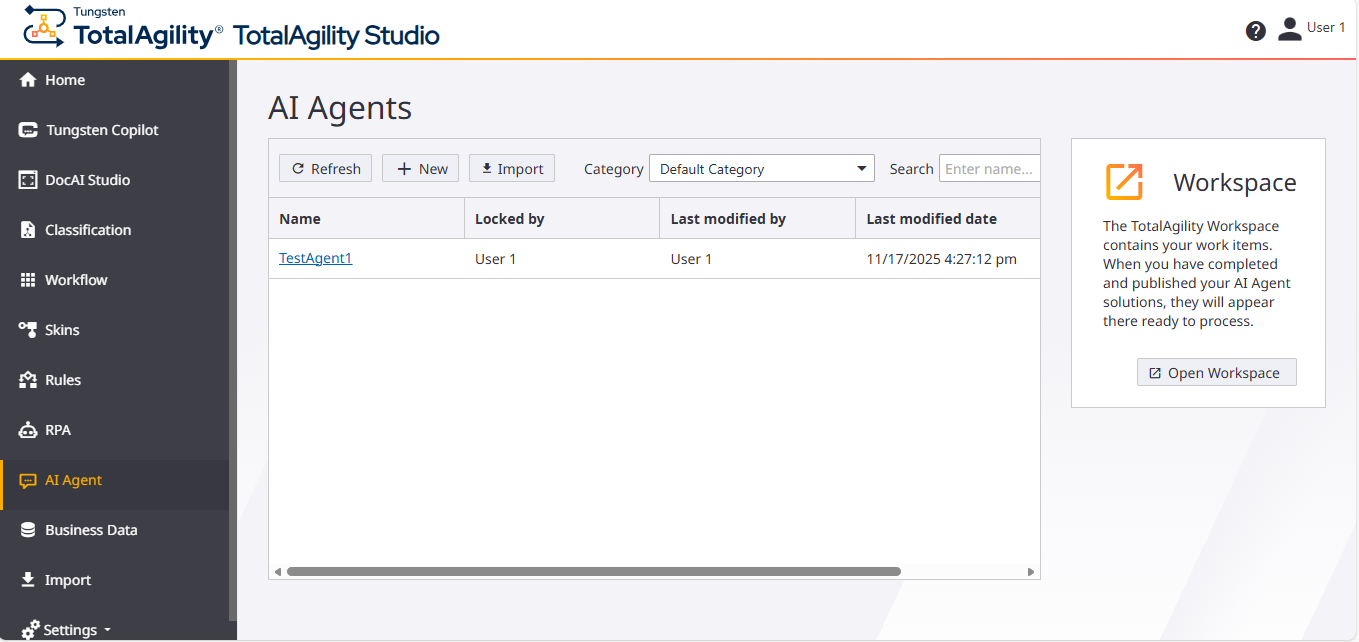
The Create new AI Agent button is replaced by the New button and is available next to the Refresh button.
- Name
-
The name of the AI Agent workflow. Select the name link to open the AI Agent workflow.
- Locked by
-
Displays the username of the person who has locked the AI Agent workflow.
- Last modified by
-
Displays who last modified the AI Agent workflow.
- Last modified date
-
Displays the date when the AI Agent workflow was last modified.
- Version
-
Displays the version number of the AI Agent workflow.
- context menu
-
This menu has the following options to manage the selected AI Agent workflow:
- Edit
-
Opens the AI Agent workflow for editing. This is the same as selecting the Name of the AI Agent workflow.
- Delete
-
Deletes the selected AI Agent workflow. You are asked to confirm the deletion to ensure that you do not accidentally delete an AI Agent workflow.
- Unlock
-
When an AI Agent workflow is released, it is locked by default, preventing other users from making changes. This setting enables you to unlock an AI Agent workflow for editing.
- Associations
-
Opens the Associations window that displays the list of associations for the selected AI Agent workflow. Associations help you decide the impact of changes.
This window is empty if there are no associations for the selected AI Agent workflow.