
Example - Using conditions in Workflow
The following example illustrates using a Condition node in Workflow.
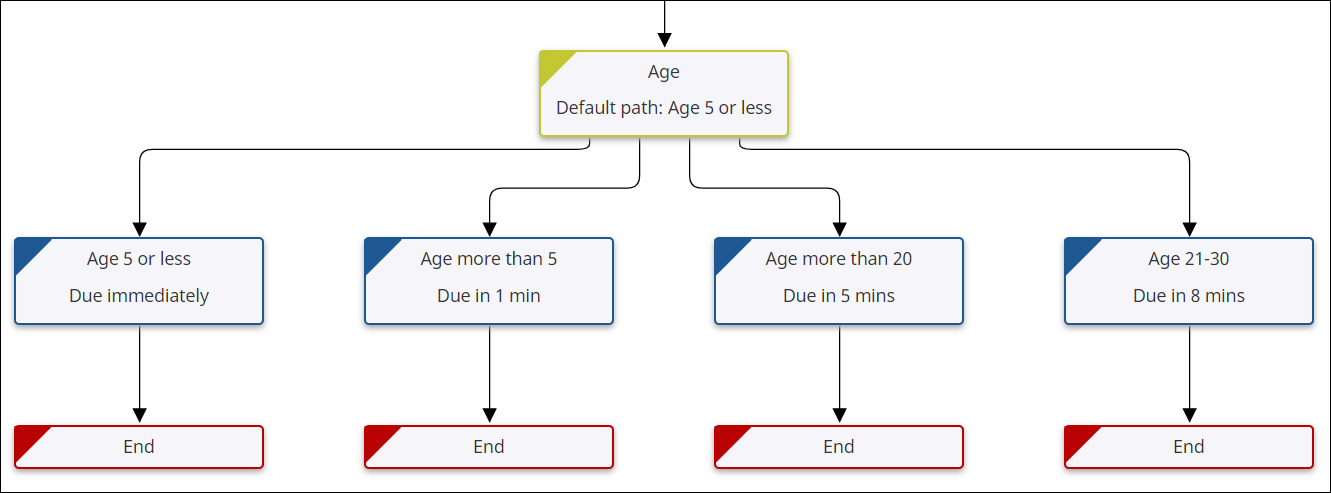
- Add a condition "Age" under the Start node.
-
Configure the following four conditions for
"Age", adding the expression in the rule editor.
Condition Expression Description 1
"Age <=5"
Age less than or equal to 5
2
"Age >5"
Age greater than 5
3
"Age >20"
Age greater than 20
4
"Age =21-30"
Age between 21-30
- Publish the workflow.
-
At runtime, the path taken depends on the condition and the value you provide.
-
If you use a value of 3, the first path is taken, where the age is less than or equal to 5.
-
If you use a value of 21, then the second, third, and fourth paths are available to be selected, as the age in these paths is defined as greater than 5, greater than 20, and between 21-30. You can take any path that meets the condition.
-
If none of the conditions are met, the default path is taken. Workflow supports (OR) branching, and allows one or more, or all of the outgoing paths to be taken.
-