
Launch TotalAgility Studio
When you install Tungsten TotalAgility, TotalAgility Studio is automatically installed and available on the Start menu.
Before you begin
Ensure you have access to the following for using the TotalAgility Studio applications:
-
Advanced Studio
-
Process
-
Capture design (Access control list)
-
Work type
-
To create a new resource within Workflow and RPA, you must have access to the Resources.
Procedure
-
Select
.
Alternatively, provide the following URL: http://<servername>/TotalAgility/apps. Then log in with your user credentials or use Windows authentication.
After successful login, the TotalAgility Studio Home page appears.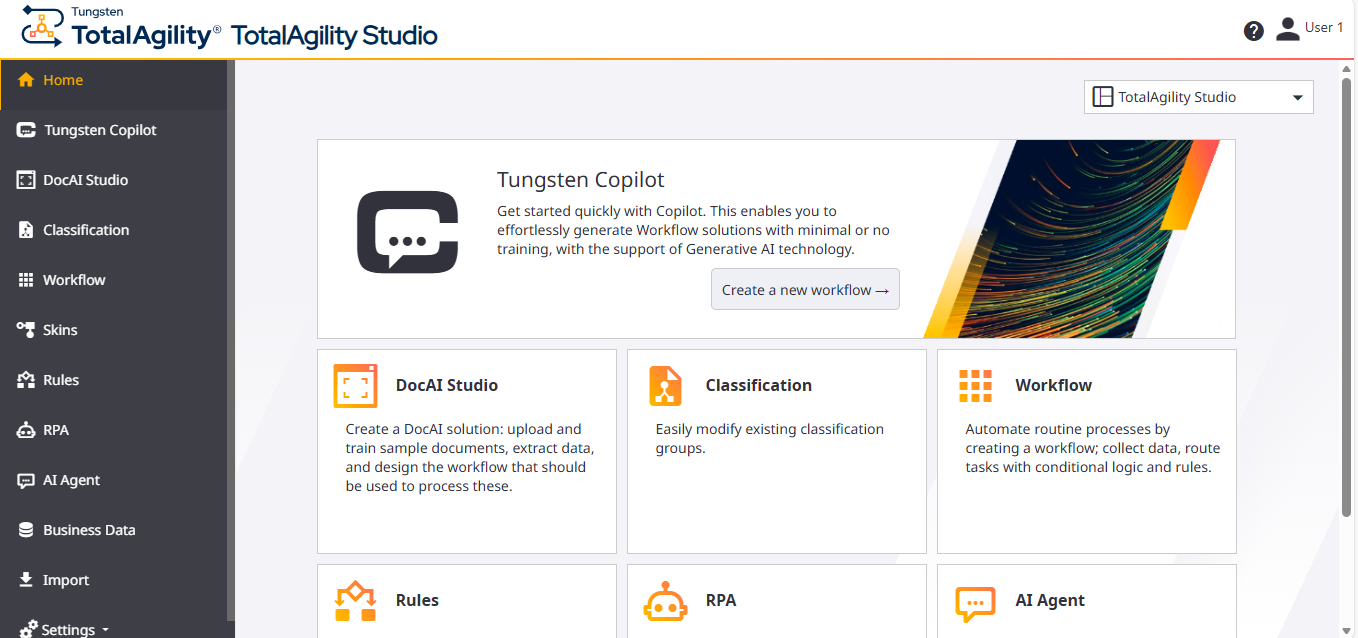
-
Select the following cards or menu to configure processes and Capture items.
Card Description Tungsten Copilot
Use this menu/card to open the Copilot where you can create a workflow solution using Generative AI technology by providing some information to OpenAI. To start using Copilot, you must have already configured the AI provider integration in the TotalAgility Advanced Studio; otherwise, you are prompted to configure one.
DocAI
Use this menu/card to open the DocAI solutions page, where you can create a Document AI solution.
Classification
Use this menu/card to open the Classification groups page, where you can modify existing classification groups.
Workflow
Use this menu/card to open the Workflows page, where you can create a workflow solution.
Skins
Use this menu to open the Skins page, where you can create and modify process skins to create different variants of a process template.
Rules
Use this menu/card to open the Rules page, where you can modify decision table business rules.
RPA
Use this menu/card to open the RPA Workflows page, where you can create an RPA workflow solution.
AI Agent
Use this menu/card to open the AI Agent page, where you can create an AI agent workflow solution.
Business Data
Use this menu to open the Business Data page, where you can create and modify business data.
Import
Use this menu to open the Import page, where you can import a TotalAgility Studio package.
-
A list of different design environments is available on the top right of the screen. You can switch between different
environments as needed.
-
Advanced Studio: Opens the Advanced Studio Home page.
-
DocAI Studio: Opens the DocAI Studio page.
-
TotalAgility Studio: Opens the TotalAgility Studio Home page.
After you open a designer and then switch to another one, the most recently opened designer is saved in the database as the default designer. After this update, all designer links (Advanced Studio, DocAI Studio, and TotalAgility Studio) will redirect to the home page of the default designer. Additionally, if multiple designers are open in different browser tabs, refreshing any of the tabs causes all of them to display the default designer's home page.
You must have access permissions to "Designer", to open the Advanced Studio or DocAI Studio link. For more information, refer to "Access control list" in TotalAgility Advanced Studio Help.
-
- To navigate to the Home page from any page of the application, select Home.