
RPA workflow designer
You can configure workflow solutions using the tabs and buttons available on the RPA designer.
When you select New on the Workflows page, the Workflow designer opens.
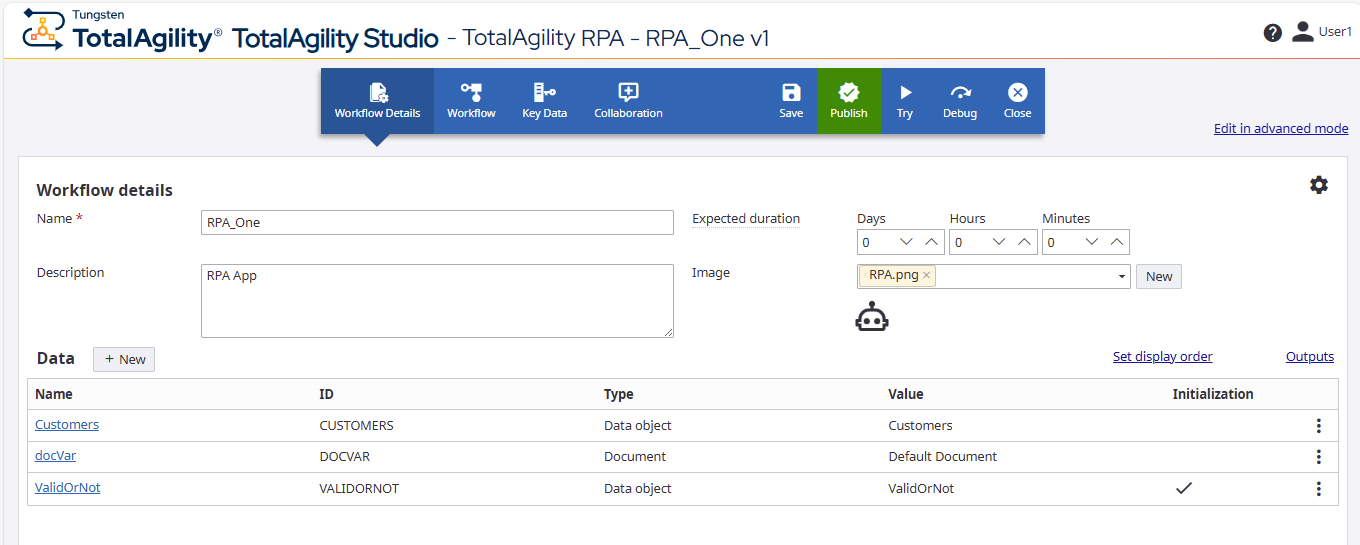
The Workflow designer includes the following tabs and buttons.
- Workflow Details tab
-
Use the Workflow Details tab to configure the details for a workflow, create variables, and update workflow settings. By default, the Workflow Details tab is open.
- Workflow tab
-
Use the Workflow tab to design a workflow. You can create a workflow using manual tasks, rules, conditions, custom services, sub-processes, email, and RPA node.
- Key Data tab
-
Use the Key Data tab to define key workflow data to be displayed on the Job list and Work queue at runtime.
- Collaboration tab
- Use the Collaboration tab to add a note to your process, such as add a note requesting items from IT.
- Save button
-
Select this button to save the workflow changes and create a minor version of the workflow. A saved workflow displays the minor version, such as 0.1
- Publish button
-
Select this button to publish the workflow and create a major version of the workflow. A released workflow displays the major version, such as 1.0.
The business process, Create new job form, work type, work queue queries, and job queries are generated.
- Try button
- Use this button to quickly try the solution and then make more changes if required. This option is only displayed if you modify the solution that is published at least once. See Try a workflow solution.
- Debug button
- Select this button to debug a solution and identify any issues quickly when developing a solution. This option is only displayed if you have access to the TotalAgility Advanced Studio. See Debug a workflow solution.
- Close button
-
Select this button to close the application without saving it.
- Designer area
-
This pane does not have a label. You can configure a single instance of workflow in this area.