
Log on to Business Data
When you install Tungsten TotalAgility, the Business Data application is automatically installed and available under TotalAgility Studio.
Before you begin
Ensure you have access to Advanced Studio and Process to use the Business Data application. Refer to "Access control list" in the Tungsten TotalAgility Advanced Studio Help.
Procedure
You can log on to the Business Data application either from the Windows Start menu or directly using the Business Data URL.
Open Business Data from the Windows Start menu
-
Select
.
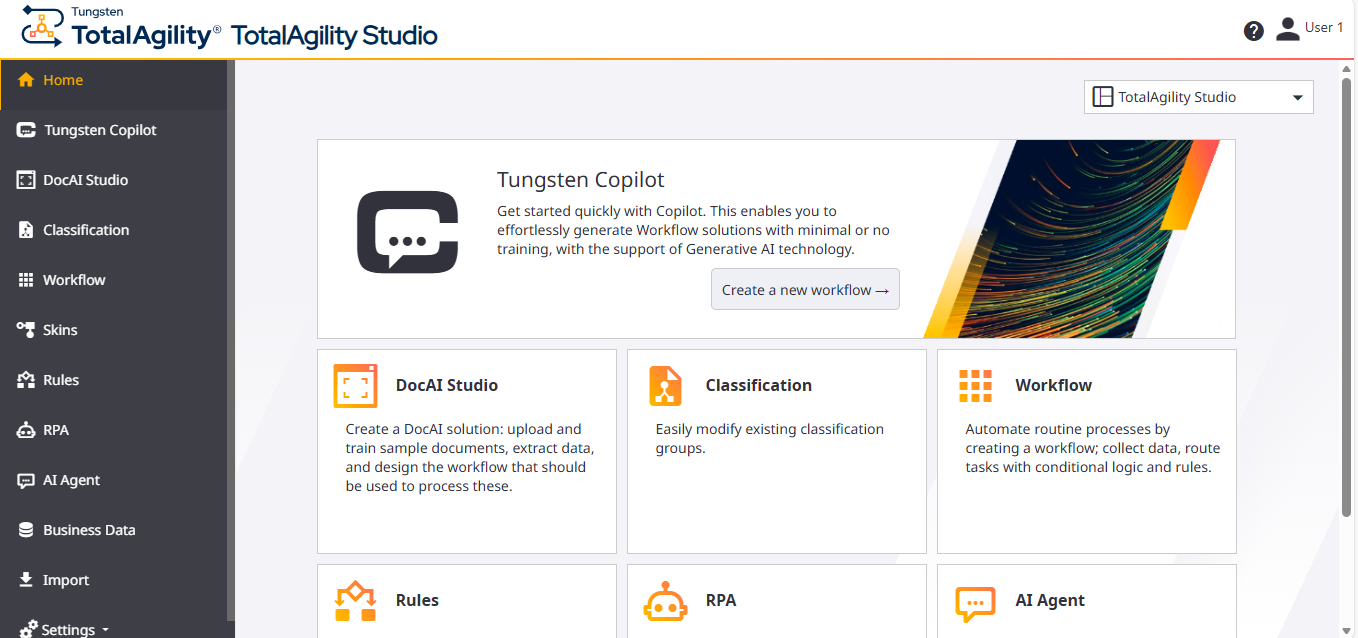
The TotalAgility Studio Home page is displayed.
-
Select either the
Business Data card or
Business Data in the navigation menu.
The Business Data application opens.
Open Business Data directly using the URL
- Enter the following URL in the browser. http://<server name>/TotalAgility/designer/#/quickbusinessdata/home
-
Log in with your user credentials or use Windows authentication.
The Business Data application opens.
The Business Data page displays only the list of business data created in the TotalAgility Advanced Studio for all business rule types.
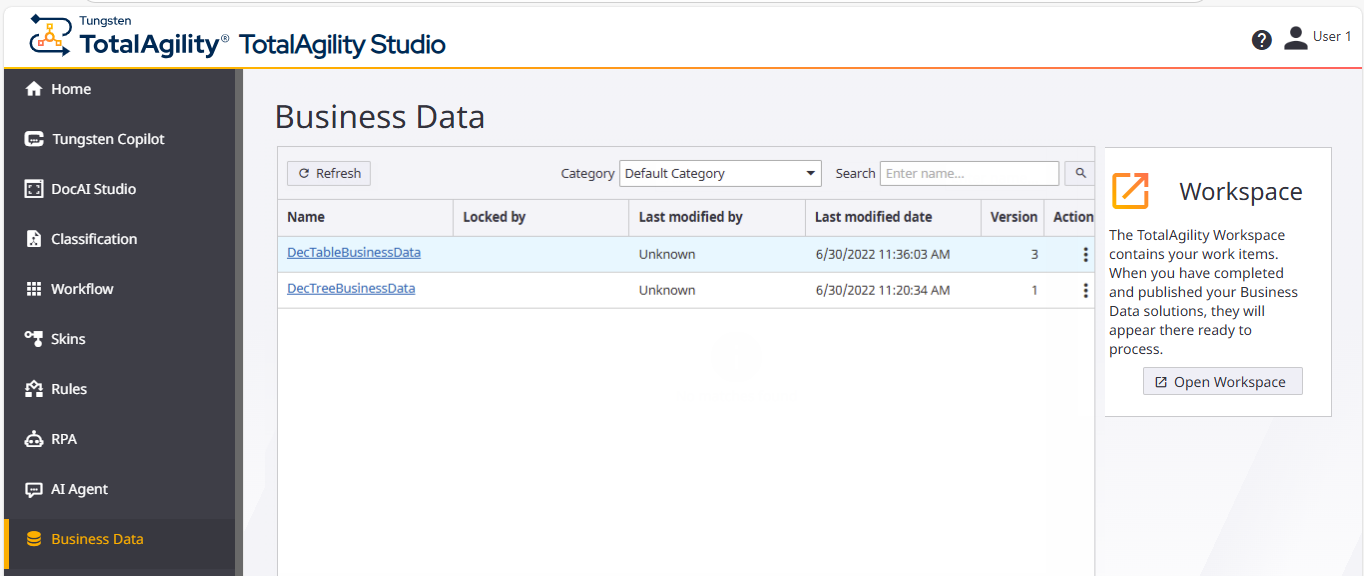
A list of business data associated with business rules, decision trees, decision tables, and work queue automation is displayed with the following details:
Name, Locked by, Last modified by, Last modified date, Version, and Action.
Select the item to open it in a new browser tab. The list of business data associated with the item is displayed.
If another user has locked the business rule, the following message is displayed:
"The business rule is locked by another resource; it will be opened read-only."
More info