
Log on to Skins
Before you begin
Ensure you have access to the following areas to use the Skins application:
-
Advanced Studio
-
Process
See "Access control list" in the TotalAgility Advanced Studio Help.
Procedure
You can log on to the Skins application either from the Windows Start menu or directly using the Skins URL.
Open Skins from the Windows Start menu
-
Select
.
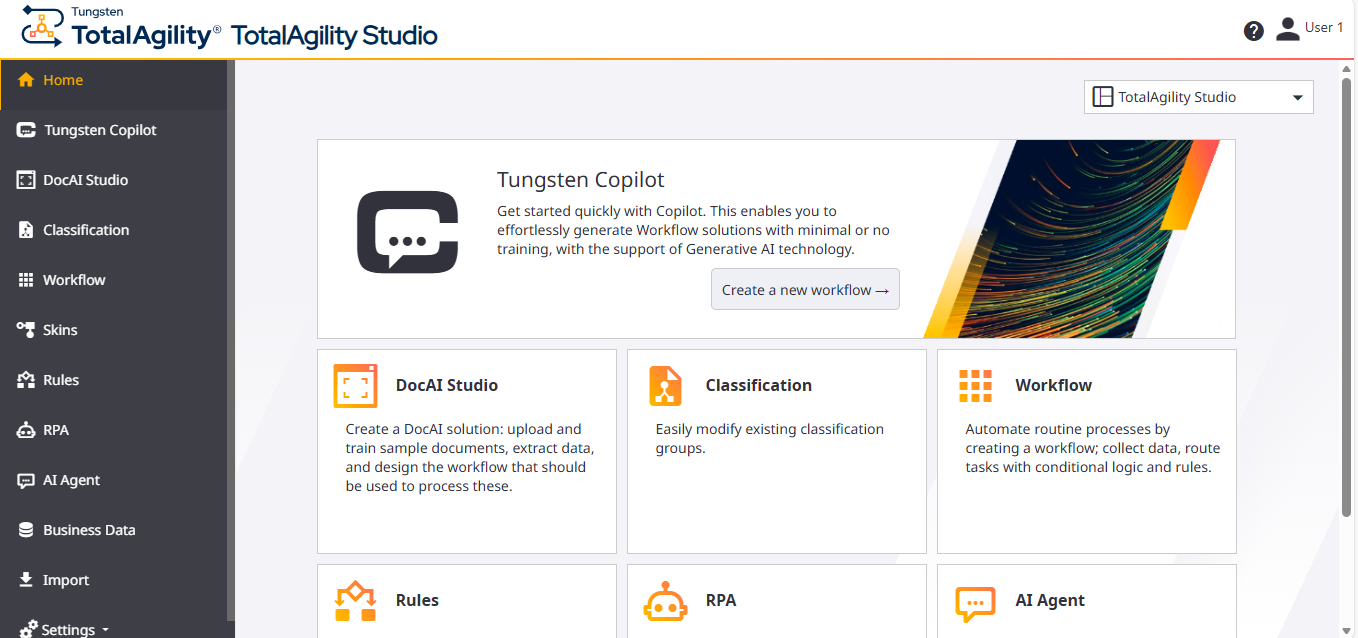
The TotalAgility Studio Home page is displayed.
-
Select
Skins from the navigation menu.
The Skins page appears.
Open Skins directly using the URL
- Enter the following URL in the browser. http://<server name>/TotalAgility/designer/#/quickskins/home
-
Log in with your user credentials or use Windows authentication.
The Skins page appears.
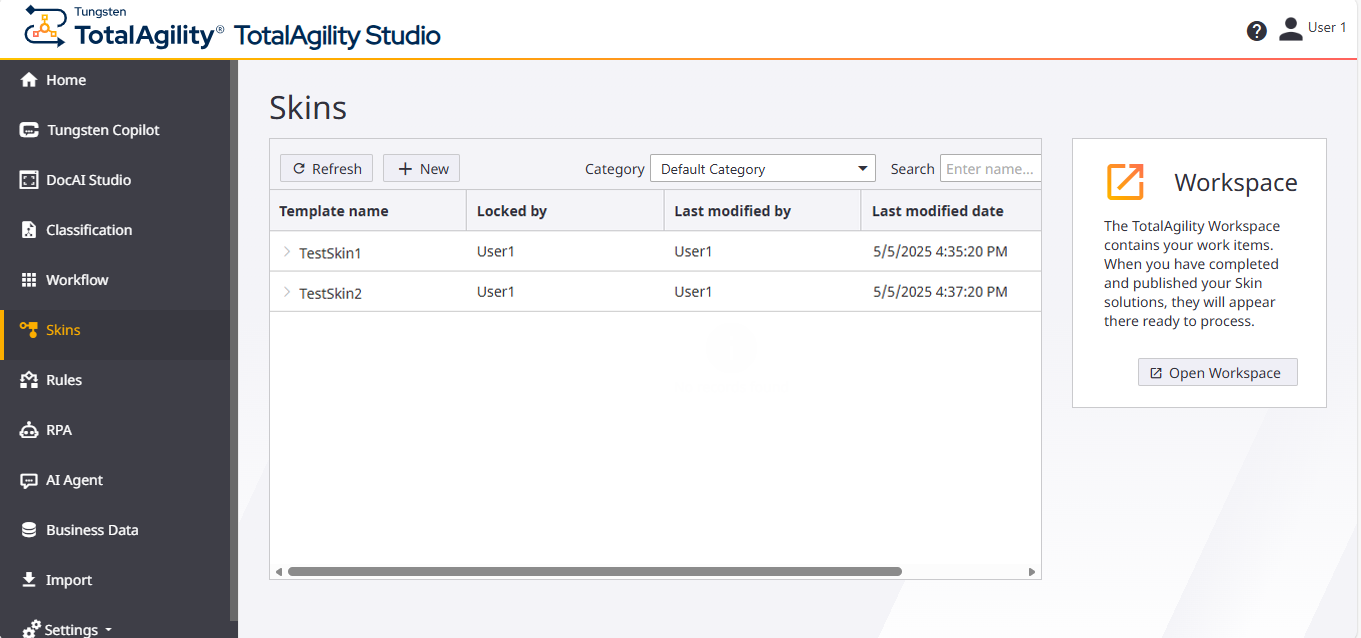
Any existing templates are displayed with the following details:
Name, Locked by, Last modified by, Last modified date, Version, and Action.
Expand the template to see the existing skins.
-
You can filter a template by Type (Business process, Case definition, or Case fragment) or Category.
-
You can also search for a specific template by entering the template name in the Search field and selecting .
-
More info