
Provide workflow details
You can configure various elements in your workflow, add new data, set the display order of the data, and update application settings on the Workflow Details tab.
-
On the
RPA Workflows page, select
New.
The Tungsten TotalAgility RPA page opens, where you can configure the workflow details.
-
Enter a unique
Name for the application. This name is also used for the generated artifacts,
such as business processes, the "Create new job" form, work type, work queue query, and job query.
If an artifact with the same name exists while saving the application, a message appears and you must provide a different name for the artifact. A work queue query and a job query can have the same name.
-
By default, the description is provided in the
Description box. You can change the description as needed.
The description can be up to 150 characters.
-
Optional. Specify the
Expected duration within which the job should be completed. On publishing the
solution, the amber threshold of the job is set to 50% of the expected duration.
If you update the time, the amber threshold is only updated after publishing the solution.
-
By default, an image is provided in the
Image box; however, you can change the image by selecting an existing image
from the database or uploading a new image.
-
To select an existing image, on the Image list, select the down arrow and select the image.
-
To upload a new image, do the following:
-
select New.
The Upload images dialog box is displayed.
-
On the Category list, select the category for the new image.
-
select Browse and select the image file to upload or drag the file from your system to the Images box.
-
If any files being uploaded already exist, you can overwrite the existing file by selecting Overwrite existing files.
-
Optional. Provide a Description for the image, such as "Company workflow images."
-
select Save to upload an image.
-
Once the file is uploaded, select Finish.
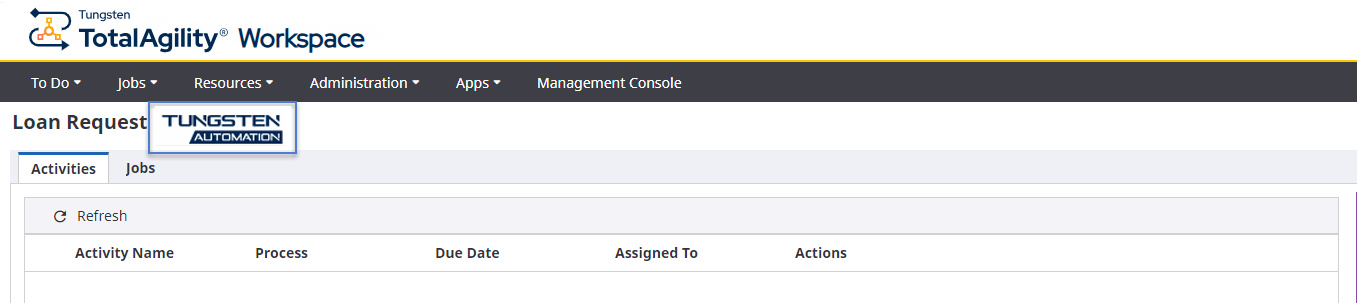
The uploaded image is saved to the database and appears next to the title in the TotalAgility Workspace, as shown in the image below.
-
-
- Save your workflow.
More info
-
Configure RPA workflow
-
Update workflow settings
-
Work with workflow elements
-
Add key data
-
Add or update a collaboration note
-
Try a workflow solution
-
Debug a workflow solution
-
Manage a workflow solution
-
Modify a workflow solution in TotalAgility Advanced Studio
-
Export a workflow
-
Import a workflow