
Add a condition
You can add the conditions directly specifying the condition and the activity it should go to; Workflow automatically draws the workflow for you. See the procedure below.
Also, you can open a workflow in TotalAgility Advanced Studio, and add the Synchronization node type in TotalAgility Advanced Studio, then switch to AI Agent. designer again, the Synchronization node is displayed as a condition. You can publish the solution without any error, even if there are no branching rules added to the Synchronization node.
-
Select
below the Start node or any other node.
The Add activity dialog box is displayed.
- By default, "Condition" appears as the Title. You can modify the name for your condition as required.
-
To add a condition, select
for
Conditions.
The New condition dialog box is displayed.
- Right-click on the rule editor and define a rule using process and server variables.
-
To validate the expression, select
Validate.
If the rule expression is not valid, a message appears indicating the issue. Select OK to close the message, correct the expression, and validate again.
-
To set the path for the condition, select either option:
-
New Activity: Use this option if you need to create a new activity. In the Go To group, perform the following steps:
-
On the Type list, select Task.
-
In the Name field, a default name for the activity appears. You can modify the name as needed.
-
Optional. Enter a Description for the node, such as "When cost is > 500".
-
-
Existing Activity: Use this option to select an existing activity. In the Go To group, on the Activity list, select the node you need.
-
-
Select
Add.
The node name appears in the Go To column and the node description appears in the Description column in the Add activity dialog box.
-
Select
Add.
The configured properties and paths appear in the properties panel. To update the path, double-click it in the Go To column, or select the path and select on the header. Update the rule in the rule editor box and select Update.
To delete a path, select the path and select in the Condition properties panel. Alternatively, select
 on the connector.
-
Similarly, add other nodes as needed to the Condition node by defining the paths. You can add a path directly from the
properties panel, in which case, the node is automatically added to the condition as a task.
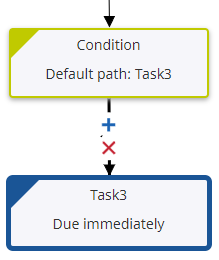
By default, the first node is set as the default path. Conditions determine the paths, and if none of the conditions are met, the default path is taken. Workflow supports OR branching and allows one or more, or all the outgoing paths to be taken.
When you open a workflow in TotalAgility Advanced Studio and view the condition node properties, the "Use exclusive OR(XOR)" property is set to false. Refer to "Branching Rules" in the TotalAgility Advanced Studio Help for more information.