
How to use Printix Go on Ricoh printers
See also:
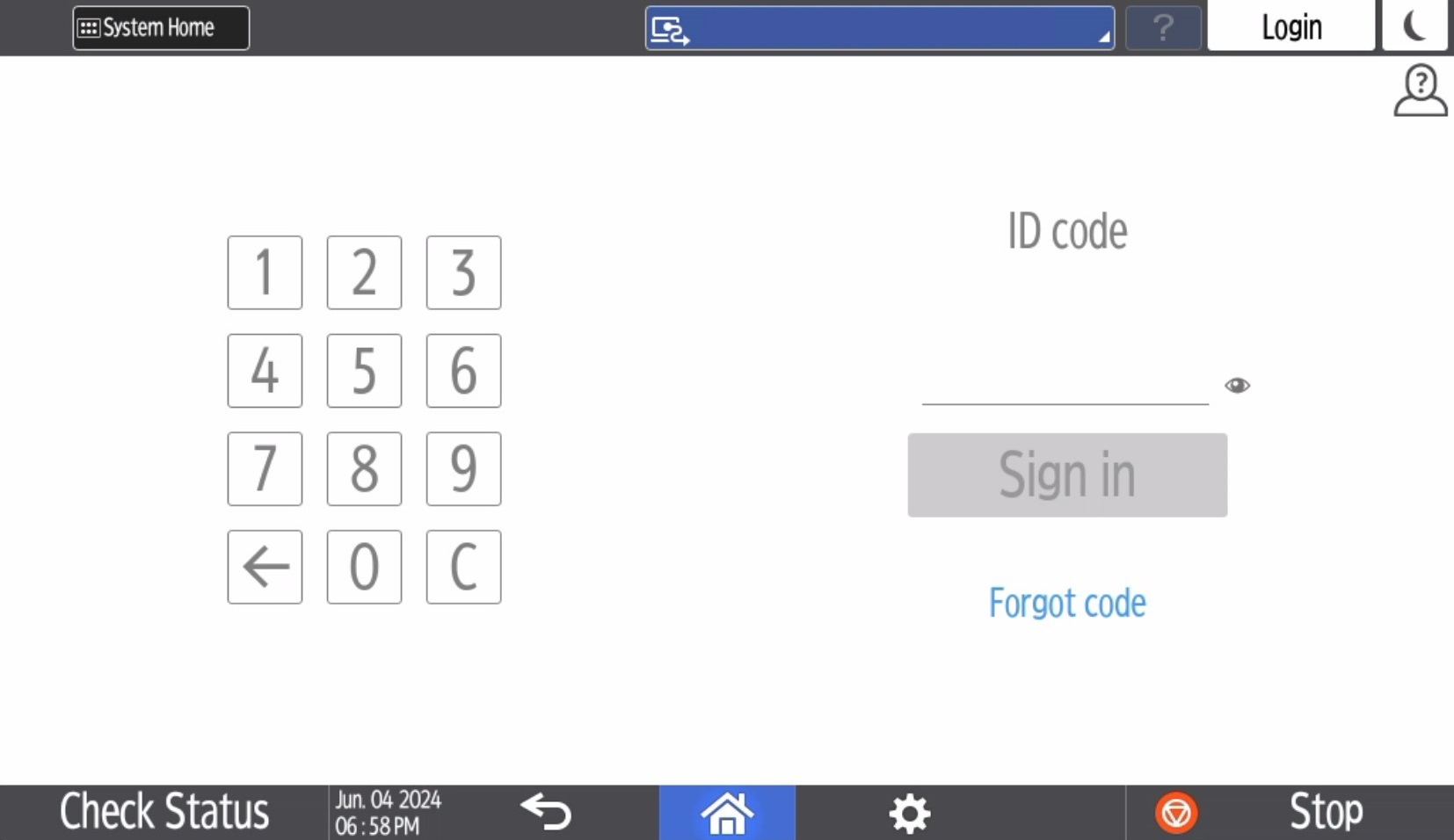
Sign in with an ID code at a Ricoh printer
-
Enter your ID code (6 digits) on the touchscreen.
-
Select the Eye
 to see the digits entered.
-
If you do not know your ID code:
-
Select Forgot code to open a new screen with a QR code. Use the camera on your phone or tablet to scan the QR code to open the Cards and codes menu in the Printix App, or browse to the URL provided to reset your ID code.
-
-
If an error message displays Login failed, select Login in the upper right corner, then try again.
-
-
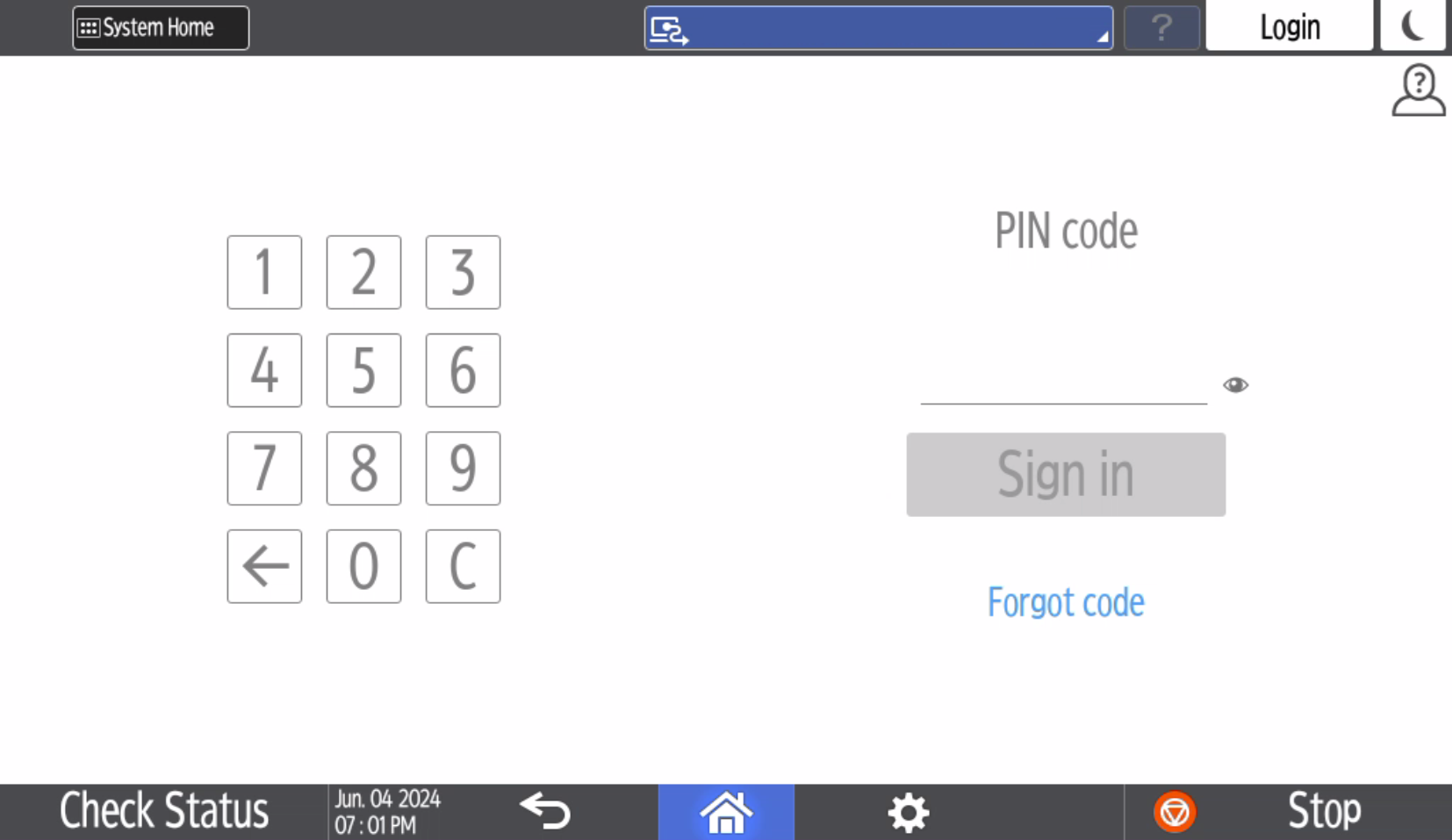
Enter your PIN code (4 digits) on the touchscreen.
-
The PIN code is the same whether you sign in with an ID code or card.
-
Select the Eye
to see the digits entered.
-
If you do not know your PIN code:
-
Select Forgot code to open a new screen with a QR code. Use the camera on your phone or tablet to scan the QR code to open the Cards and codes menu in the Printix App, or browse to the URL provided to reset your PIN code.
-
-
Sign in with card at a Ricoh printer
- If the printer is in sleep mode, wake up the printer by touching its screen. Otherwise, you cannot sign in with card.
-
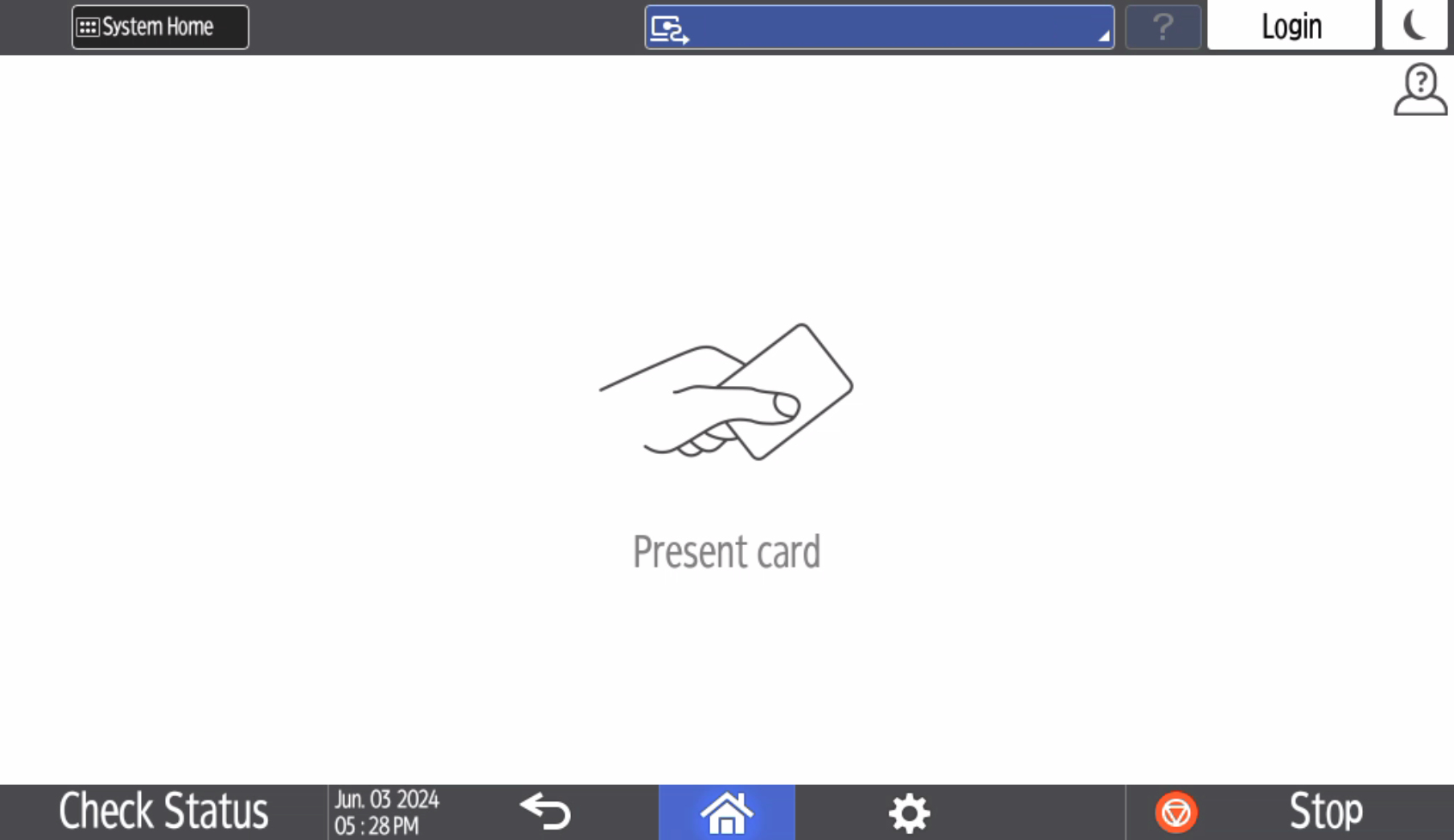
Swipe your card at the card reader on the printer.
-
A computer with Printix Client must be online on the printer's network. Otherwise, nothing happens when the card is swiped.
-
If another user was signed in, swiping your card started to sign out that user. Wait until the sign-out process is completed, then swipe your card again.
-
-
If prompted, enter your PIN code (4 digits) on the touchscreen.
-
The PIN code is the same whether you sign in with an ID code or card.
-
Select the Eye
to see the digits entered.
-
If you do not know your PIN code:
-
Select Forgot code to open a new screen with a QR code. Use the camera on your phone or tablet to scan the QR code to open the Cards and codes menu in the Printix App, or browse to the URL provided to reset your PIN code.
-
-
Release documents at a Ricoh printer
- Sign in to the printer.
-
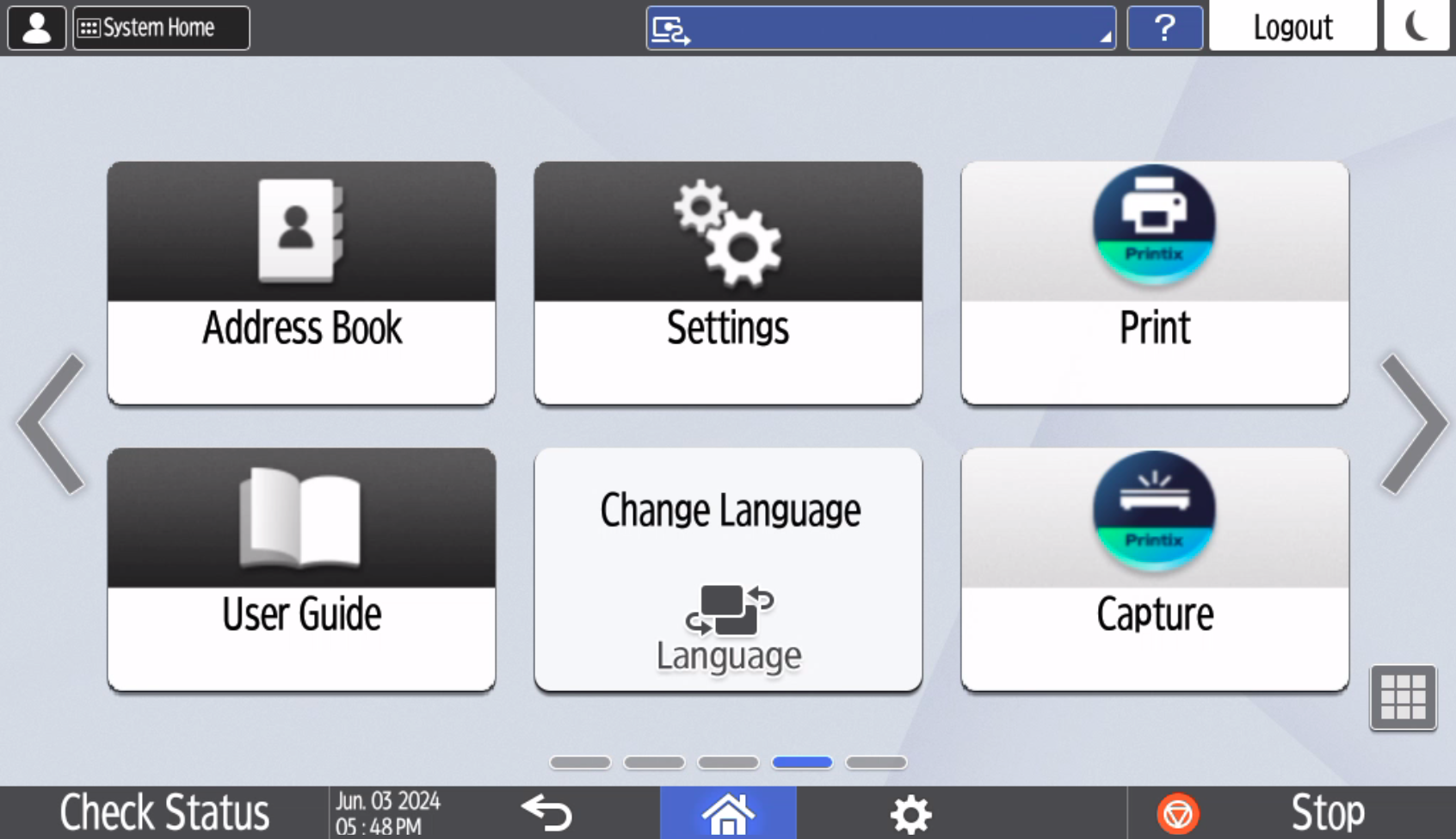
Select the Printix
Print
 icon.
icon.
-
Select the documents to release, or select
Select all (the check box in the top right corner).
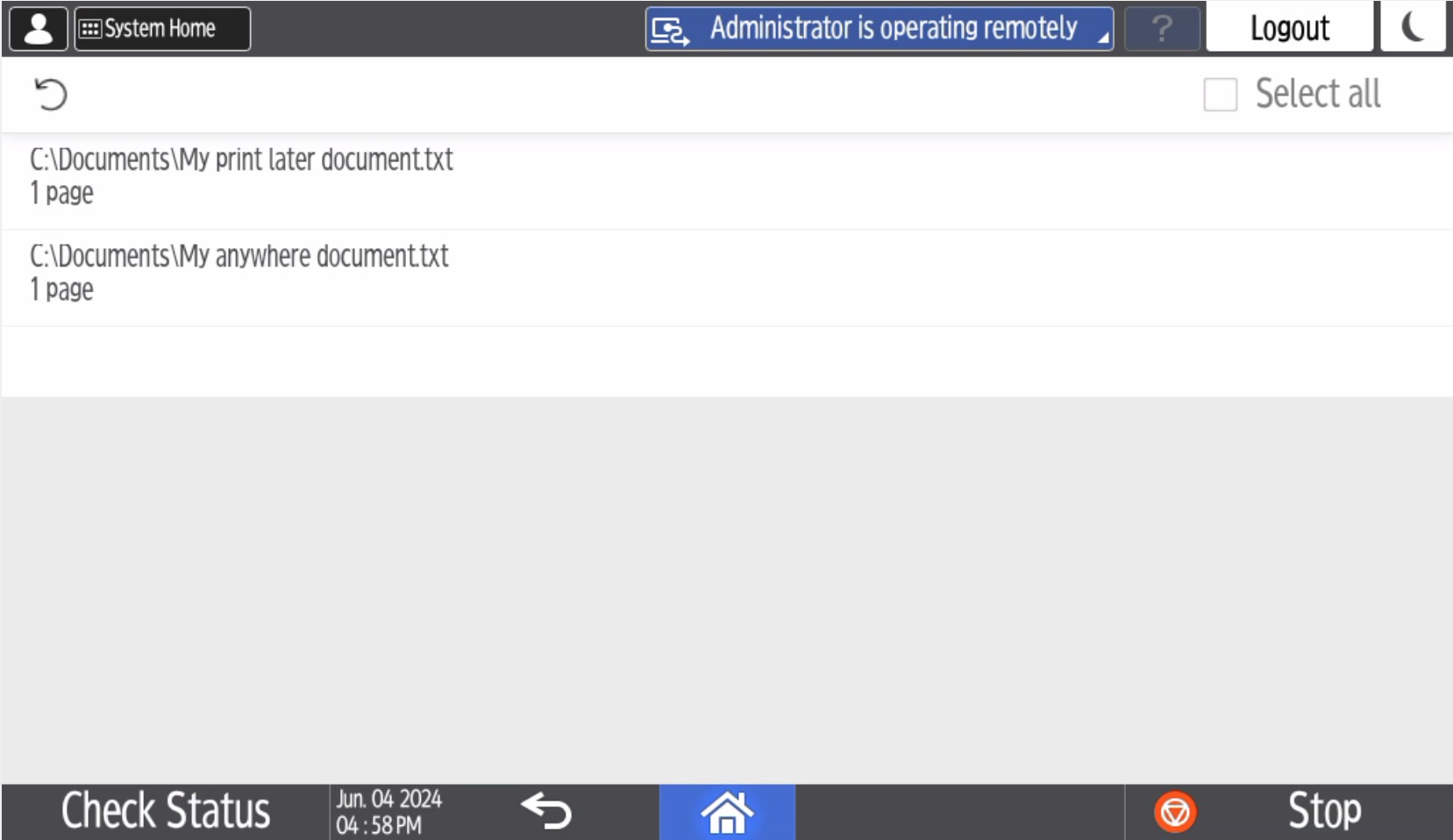
- Select Print at the bottom of the screen.
Delete documents
-
Select the documents to delete and select Delete
 .
.
-
Documents are automatically deleted if you do not print them within a specified period (default is 24 hours).
Capture at a Ricoh printer
The capture process consists of three steps:
-
Scan and upload
As soon as the document is scanned and uploaded, you are returned to the list of workflows, while the processing and delivery continue in the background.
-
Processing
The scanned document is processed by Optical Character Recognition (OCR), and a searchable PDF, an image-only PDF, or a Microsoft Word file is created.
While "Bypass output document generation" is selected, the processing step is skipped. See Bypass output document generation for details.
-
Delivery
The document is sent in email, transferred to a cloud destination (OneDrive or SharePoint), or transferred to a Connector destination.
Scan settings configured on the Ricoh printer are not applied to Printix Go Capture workflows.
To configure scan settings for a workflow, select the Gear icon in the workflow.
- Sign in to the printer.
-
Select the Printix
Capture
 icon.
icon.
The Capture icon might take 3 minutes to appear after signing in.
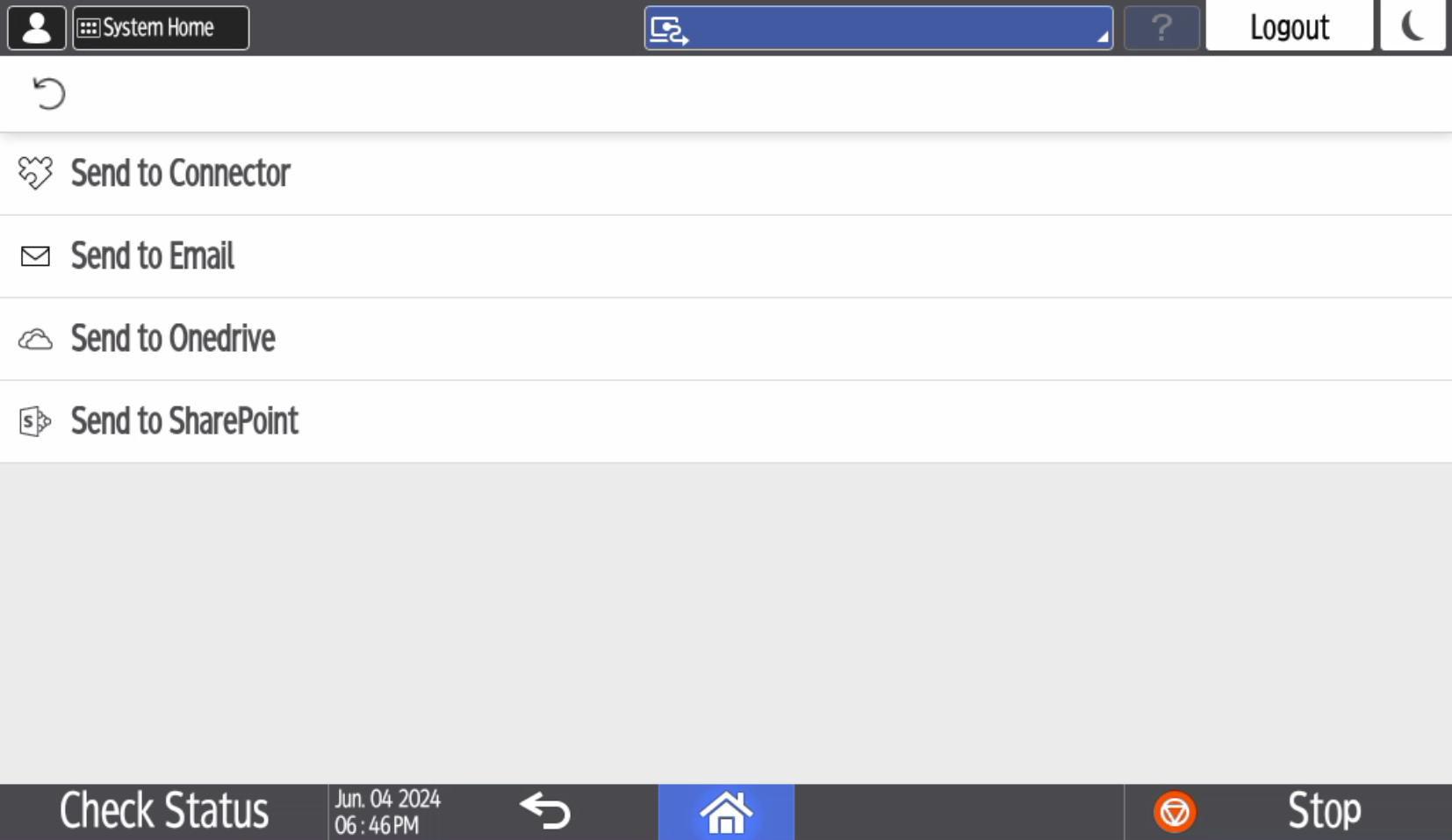
A list of capture workflows appears.
-
Select the appropriate workflow.
If you are signed in with the system manager or system observer role, the Active information (Yes or No) is displayed.
-
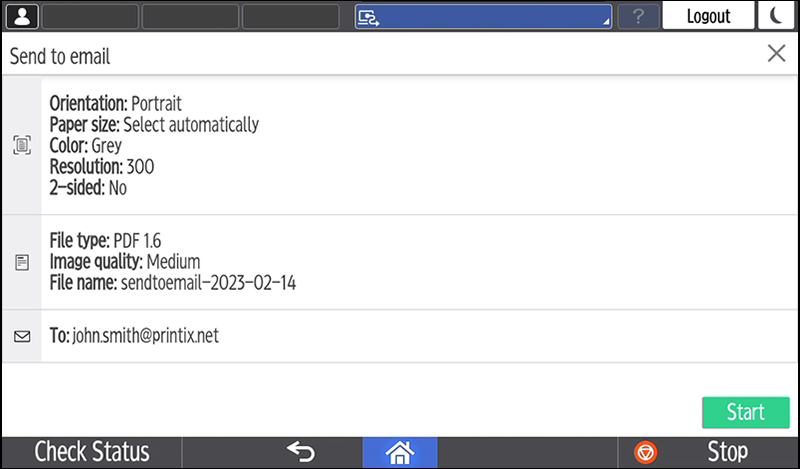
Confirm the details of the workflow and place the document in the printer:
-
Place multi-page documents in the Automatic Document Feeder (ADF).
Ensure pages are in the correct order.
-
Place one-page documents on the printer's flatbed glass.
-
-
Optionally, select the
Gear
 icon in the upper left corner to change the scan settings.
The Gear
icon does not appear on the following printers:
-
Ricoh MP C306Z SP
-
Ricoh MP C306Z SPF
-
Ricoh MP C406Z SP
-
Ricoh MP C406Z SPF
After changing the scan settings, select OK.
You return to the screen with the workflow details.
-
-
If the top row under the workflow's name displays
Data entry, data entry is required. Select
Next.
If you do not see Data entry in the top row, skip this step.
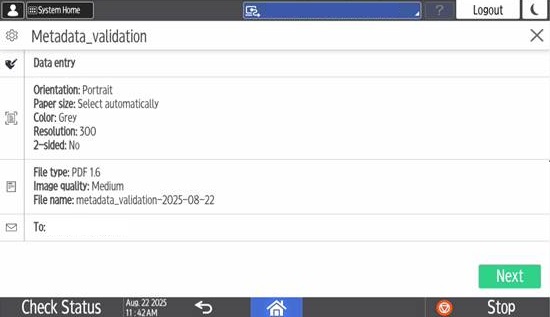
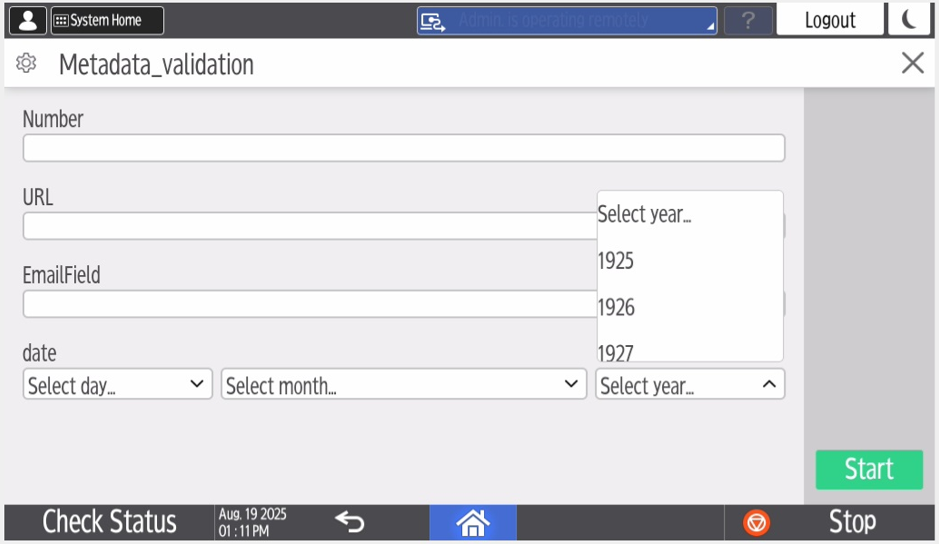
After selecting Next, the data entry screen appears.
Enter valid information into each box. (For example, if numbers are required, do not enter letters. For numbers, only whole numbers are accepted.)
Each box is filled in by using the printer's keyboard. Press Go on the keyboard after you finished writing the content of a box.
-
Select
Start to start scanning.
-
If you do not want to start the scan, select X to cancel and return to the list of workflows.
-
If data entry was required and you entered invalid data, a list of validation errors appear. Fix each error, then select Start again.
-
If you log out from the printer while the printer is scanning, the scan is canceled.
-
-
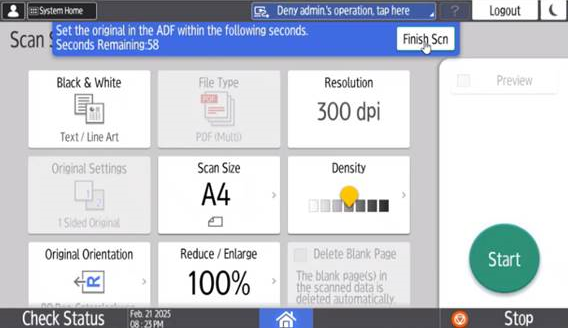
As soon as the document is scanned, you can scan more documents as part of the same scan job.
This function cannot be used on the following printers:
-
Ricoh MP C306Z SP
-
Ricoh MP C306Z SPF
-
Ricoh MP C406Z SP
-
Ricoh MP C406Z SPF
The additional documents can have different properties, such as size and color, and they can be scanned from either the printer's flatbed glass or the automatic document feeder.
-
The File Type is displayed as multi-page PDF, but the document will be scanned as the file type that was specified for the workflow.
-
Select Start to scan additional pages.
-
Select Finish Scan to send the scanned pages to the selected destination.
The printer sends the scanned documents as a single job.
-
Sign out from a Ricoh printer
You can sign out from the printer using these methods:
-
Automatic sign-out if no activity.
-
If the printer does not register key presses or touchscreen activity for a set amount of time, you are signed out automatically.
-
-
Select Sign out on the printer's Home screen.
-
To access the printer's Home screen, select the Home button.
-
-
Swipe your card at the card reader on the printer.
-
If you were already signed in, you are signed out. If another user was signed in, that user is signed out and you must swipe your card again to sign in.
-
Register card on a Ricoh printer
You can register multiple cards. When your card is registered, the date and time of the registration is recorded together with the card number. If different card readers are used, the same card can be registered with different formats (card numbers). In this situation, you can register the same card with each type of card reader.
-
Swipe the card at the card reader on the printer.

A 6-digit card registration code appears. The code is valid for 1 hour.
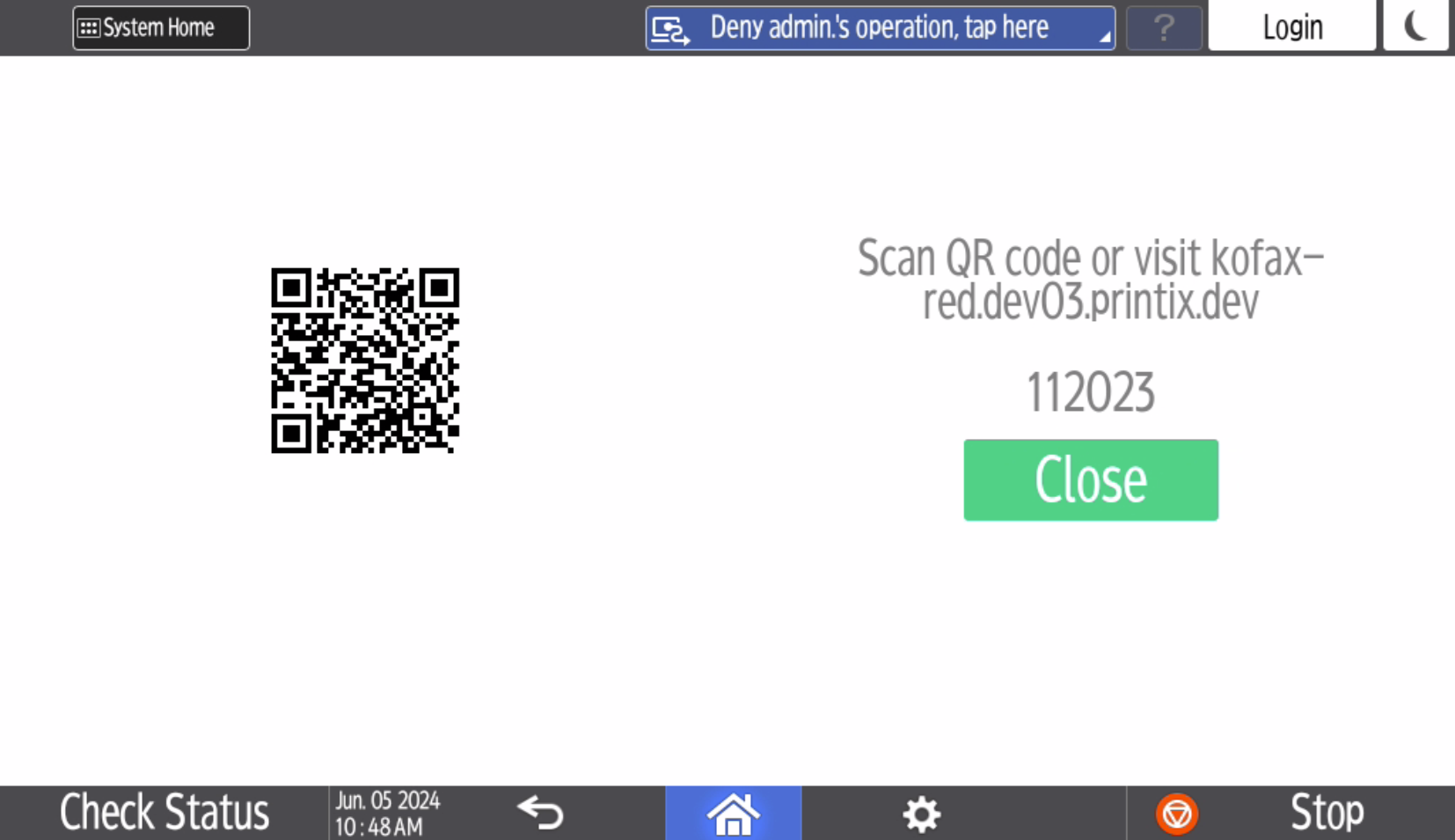
Make a note of the 6-digit card registration code and enter it later in the web Printix App on your computer.
- Register your card using one of the following methods:
Scan the QR code with the camera on your phone
-
Use the camera on your phone or tablet to scan the QR code displayed on the printer's touchscreen.
Scanning the QR code opens the web Printix App in your browser and registers the card. You may be prompted to sign in to the web Printix App.
-
With iOS/iPadOS 11 or newer, you can use the camera to scan the QR code.
-
With the Google application installed on your Android phone or tablet, you can perform a Google screen search to scan the QR code.
-
If your QR scanner app (not part of Printix) prompts you to open the link in a browser, select that option.
-
- Select Close.
Scan the QR code with the Printix App on your phone
If you are using the Printix App on your phone or tablet, you can:
- Open the Printix App for Android or iOS/iPadOS.
-
Select
Menu
 >
Cards and codes.
>
Cards and codes.
- Select Register card.
-
Select
Scan
 , then point the camera to the QR code displayed on the
printer's touchscreen.
, then point the camera to the QR code displayed on the
printer's touchscreen.
Alternatively, you can enter the 6-digit card registration code you saw previously and select Save.
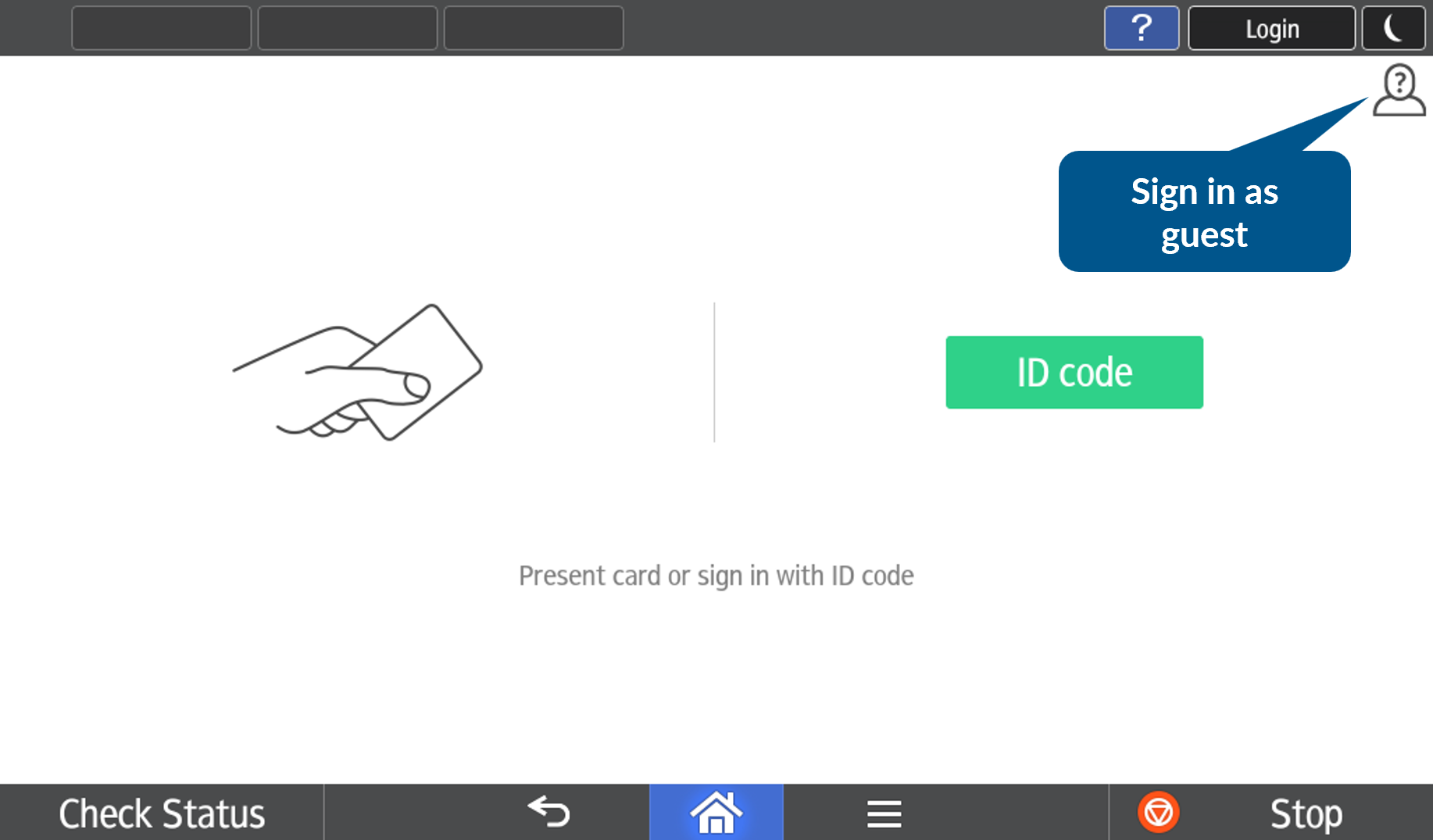
Sign in as guest on a Ricoh printer
This option requires Printix Go Ricoh version 2.0.0.27 or newer.
The
"Access control" settings in the
Go configuration
MUST have at least one function unlocked
 for sign-in as guest to be available. If all functions are
locked, the button to sign in as guest does not appear.
for sign-in as guest to be available. If all functions are
locked, the button to sign in as guest does not appear.
-
On the
sign-in page, select
Guest
 in the upper right of the printer's
touchscreen control panel.
in the upper right of the printer's
touchscreen control panel.
- Select a function to use, such as Copy if that is available.